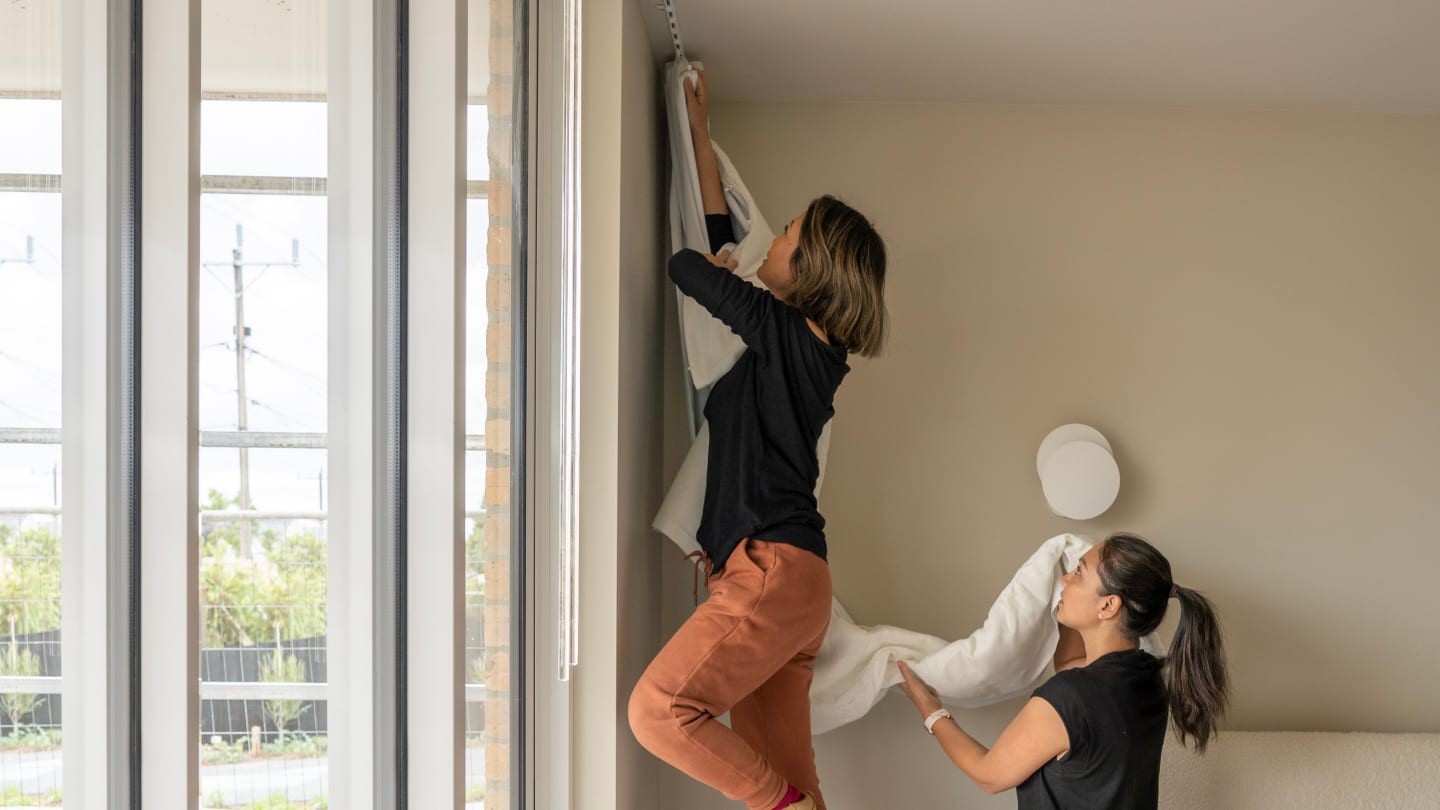
The easy way to set up your Orbis remote control for motorised blinds.
Welcome to our simple guide to setting up your remote control for your motorised roller blinds, double roller blinds and linked blinds. You're going to love just how quick and easy it is to use your new Orbis control.
What you'll need to install

1 person

less than 5 minutes per blind
Tools required
- a step ladder (to access your motor)
- a thin screw or paperclip
- a pencil
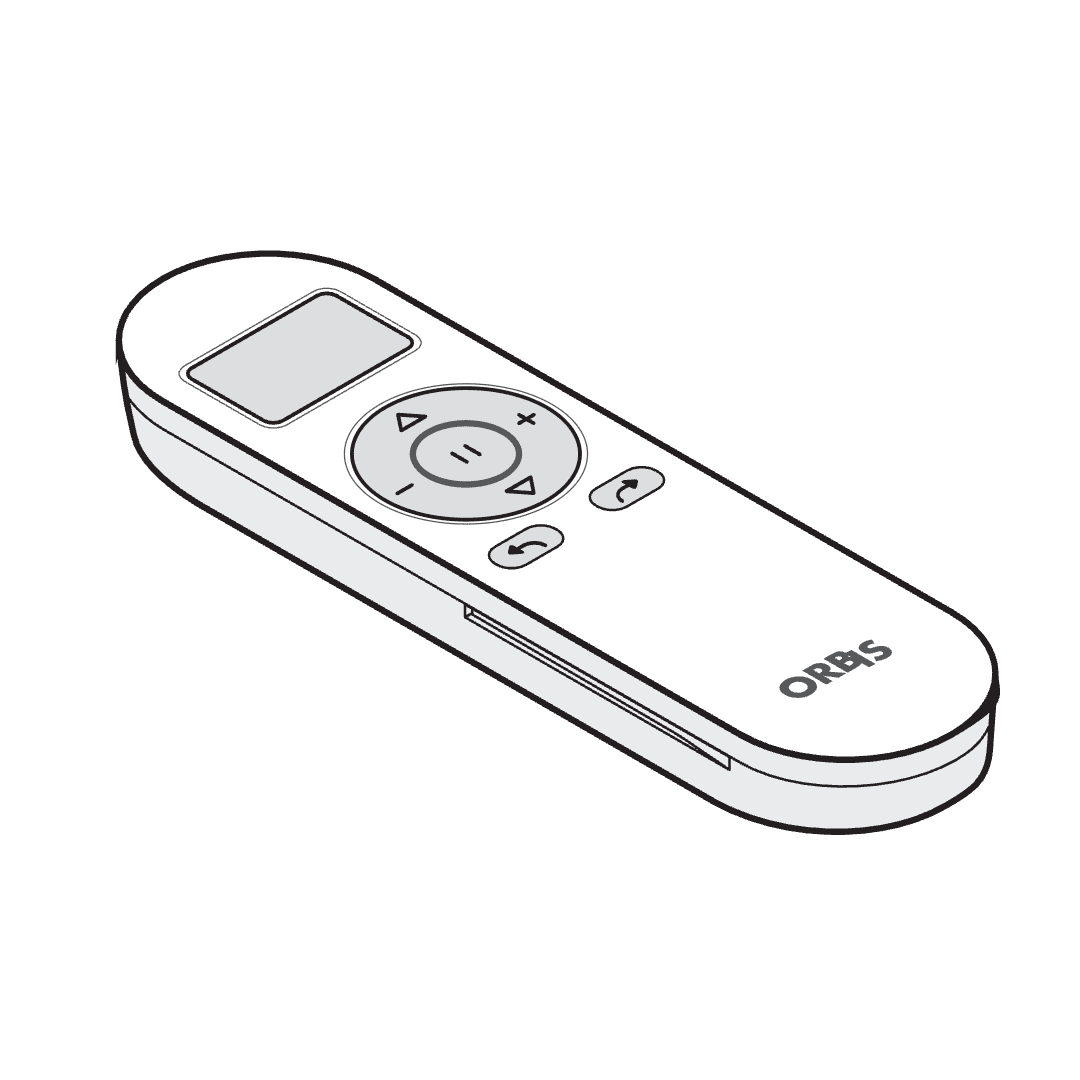
A
Your Orbis remote (1 or 15 channel)
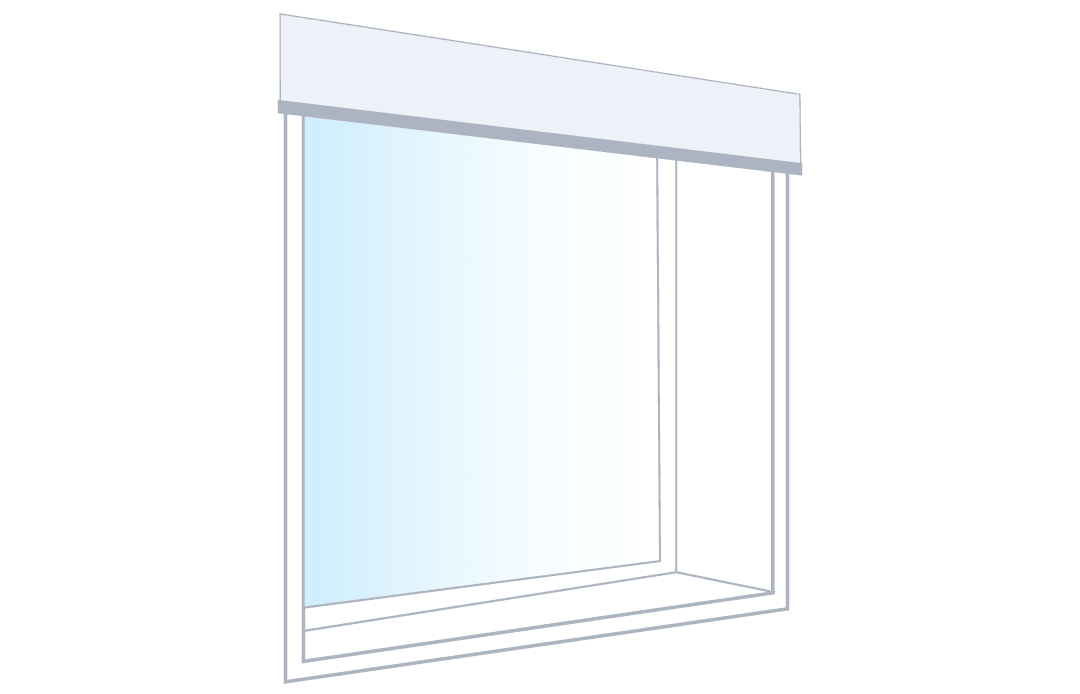
B
Your installed motorised roller blind(s)
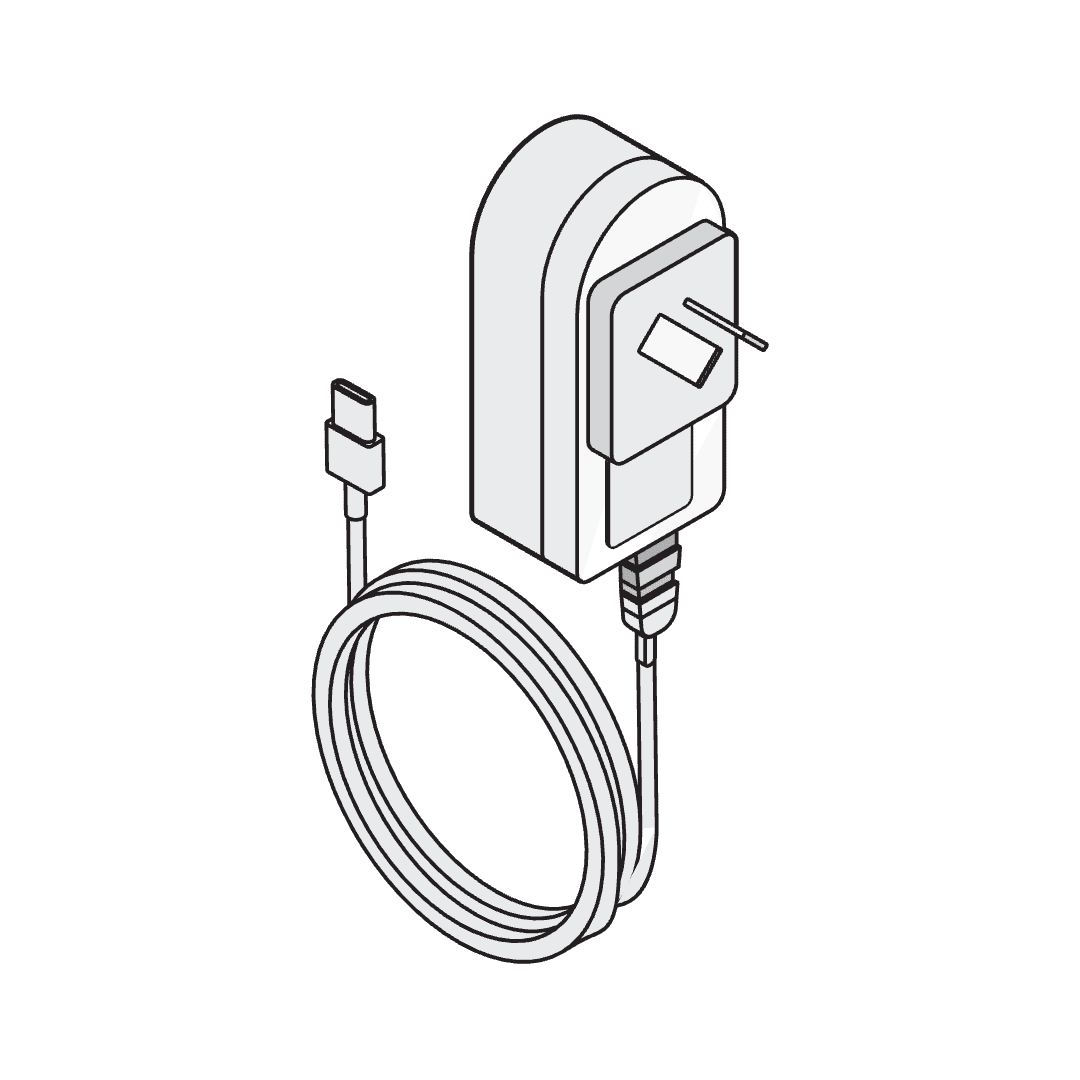
C
Your Orbis battery charging cable
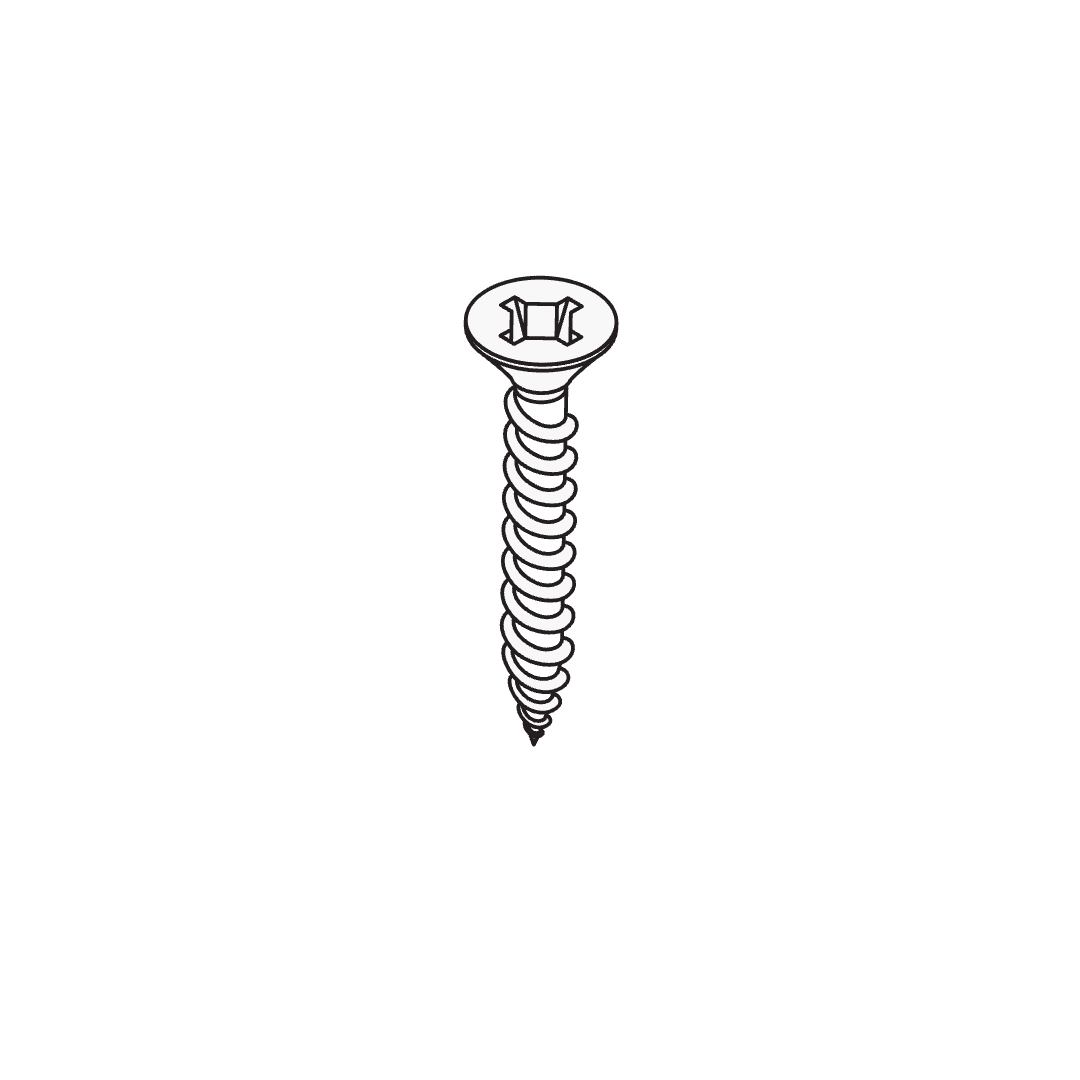
D
Screw or paperclip
Before you get going
You'll need to install your roller blinds before you set up your remote control.
If you have a brand new battery-powered motor, ensure it is fully charged before getting started. For wired motors, you can skip this step. See 'I need extra help' at the bottom of this page if you need assistance.
Always use the Orbis charger. It's designed to deliver the correct voltage and amperage for your motor — using anything else risks damage and will void your warranty.
OK it's time to start setting up, let's take it step by step.
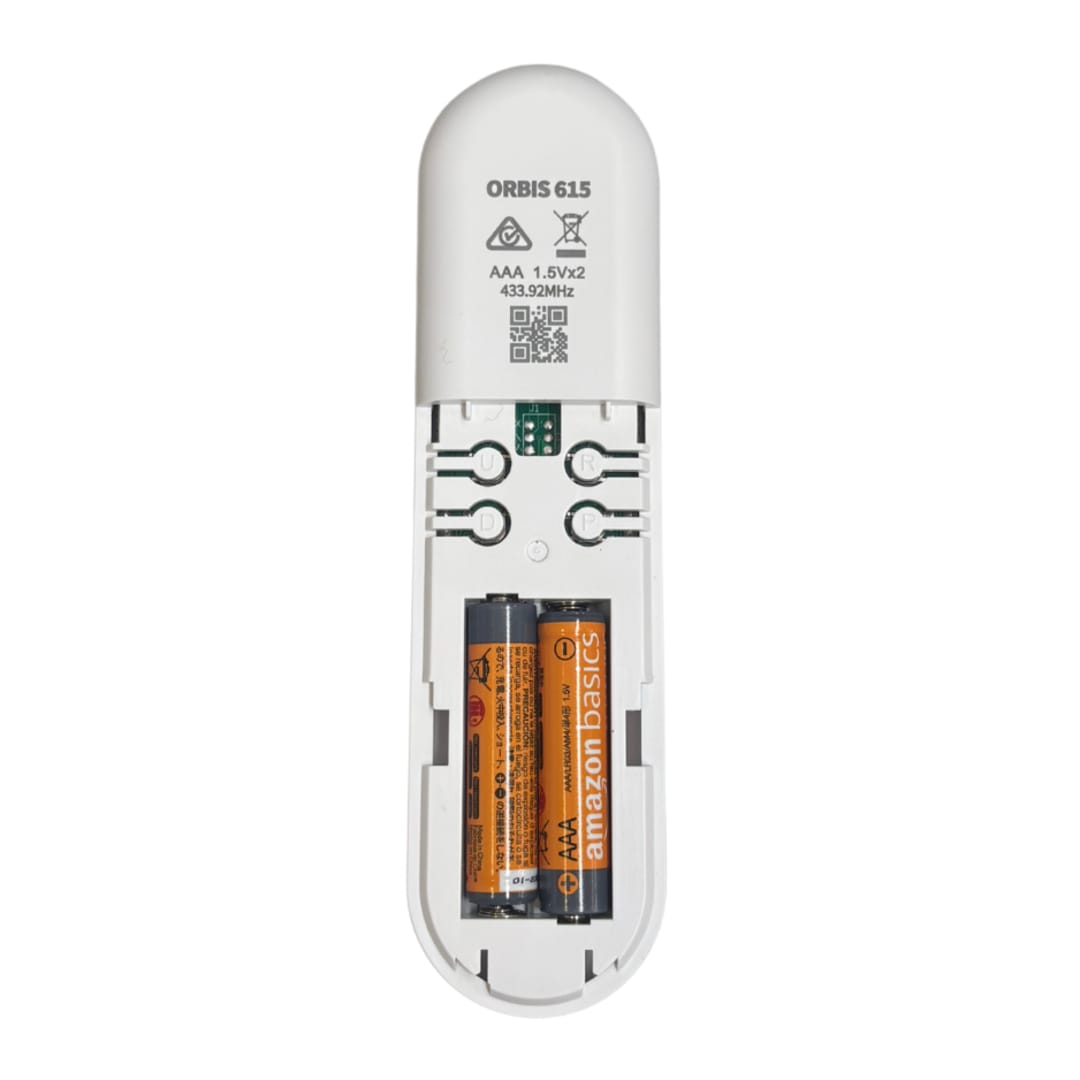
Insert the AAA batteries provided into the remote control, but do not put the battery cover back on at this stage.
Activate the motor
A
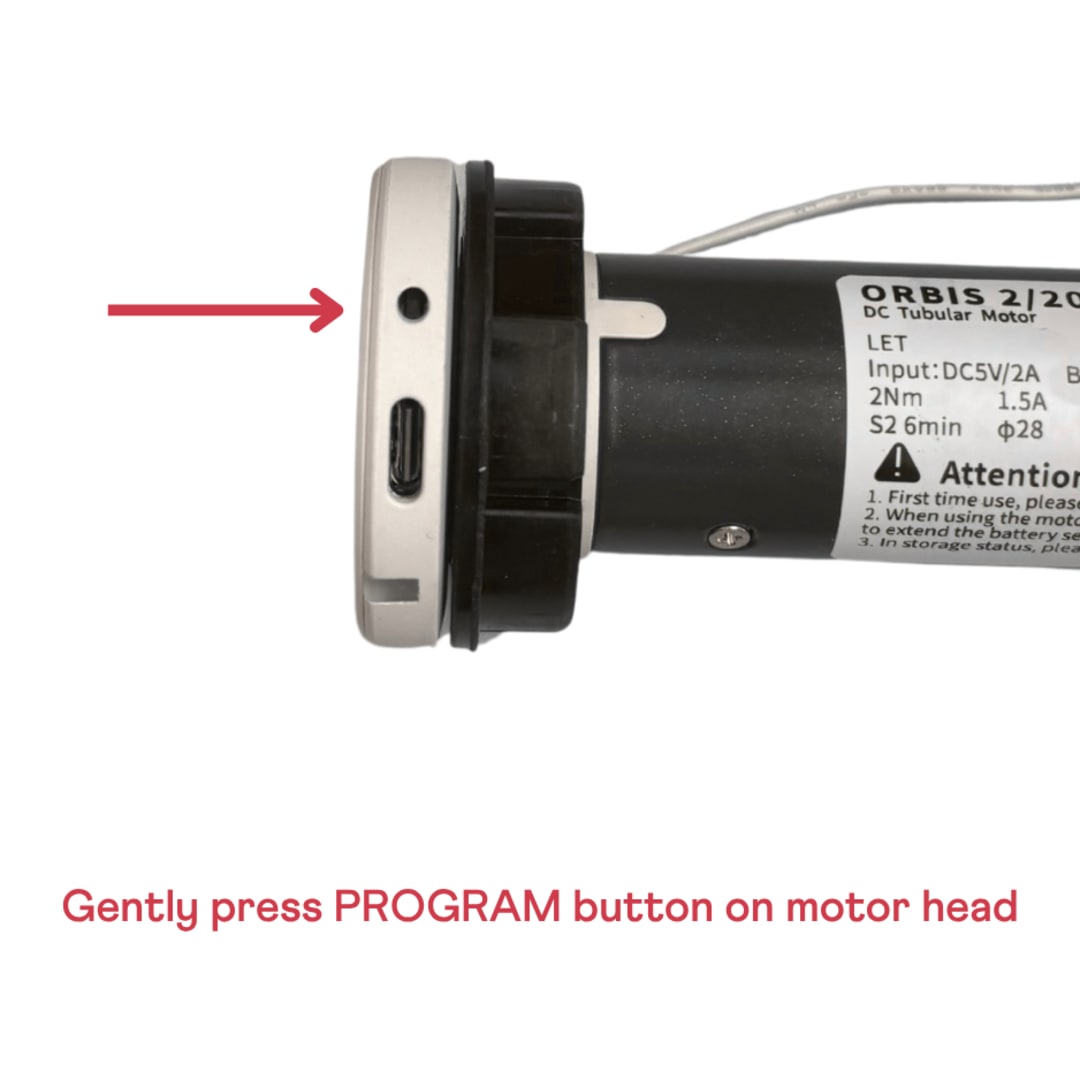
Using a screw or paperclip, gently press the PROGRAM button on the motor head (this can be found beside the charging port). This will turn on the motor.
B
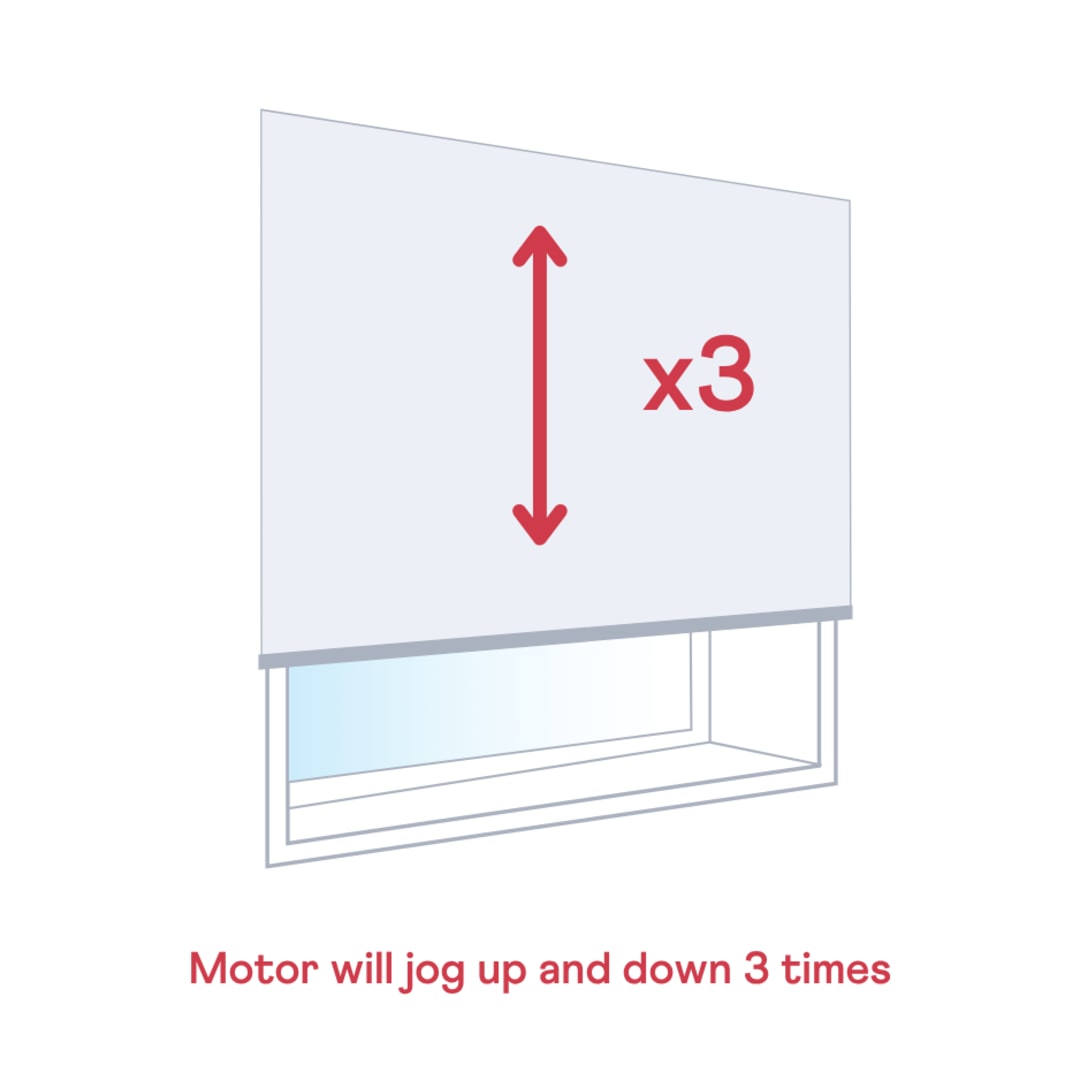
The motor will jog up and down 3 times to confirm the action.
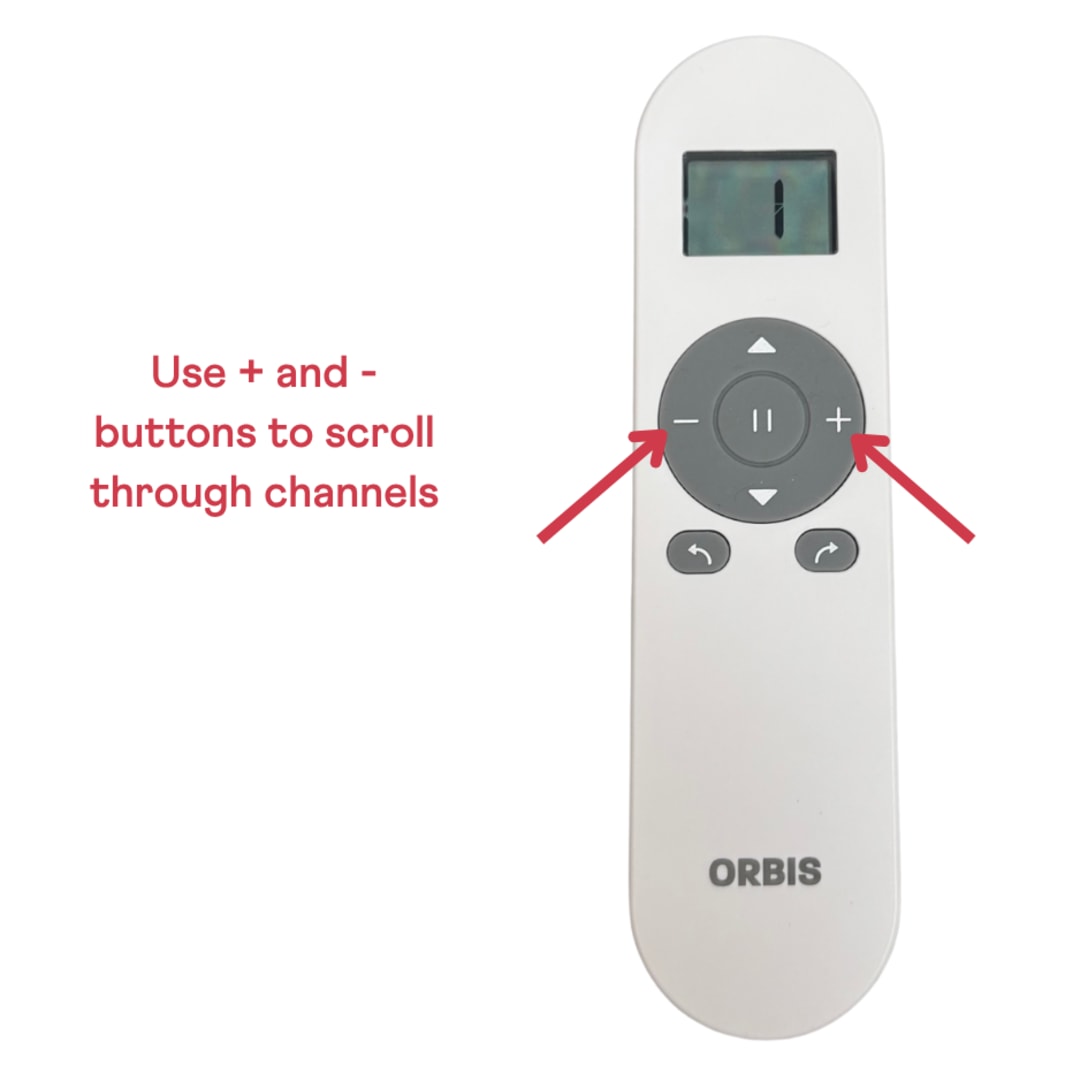
Use the remote to scroll to the channel you want to assign the motor to. Note that Channel 0 automatically groups all blinds paired to this remote under a single channel.
If you have a 1-channel remote, skip this step.
Pair the remote control to the motor
A
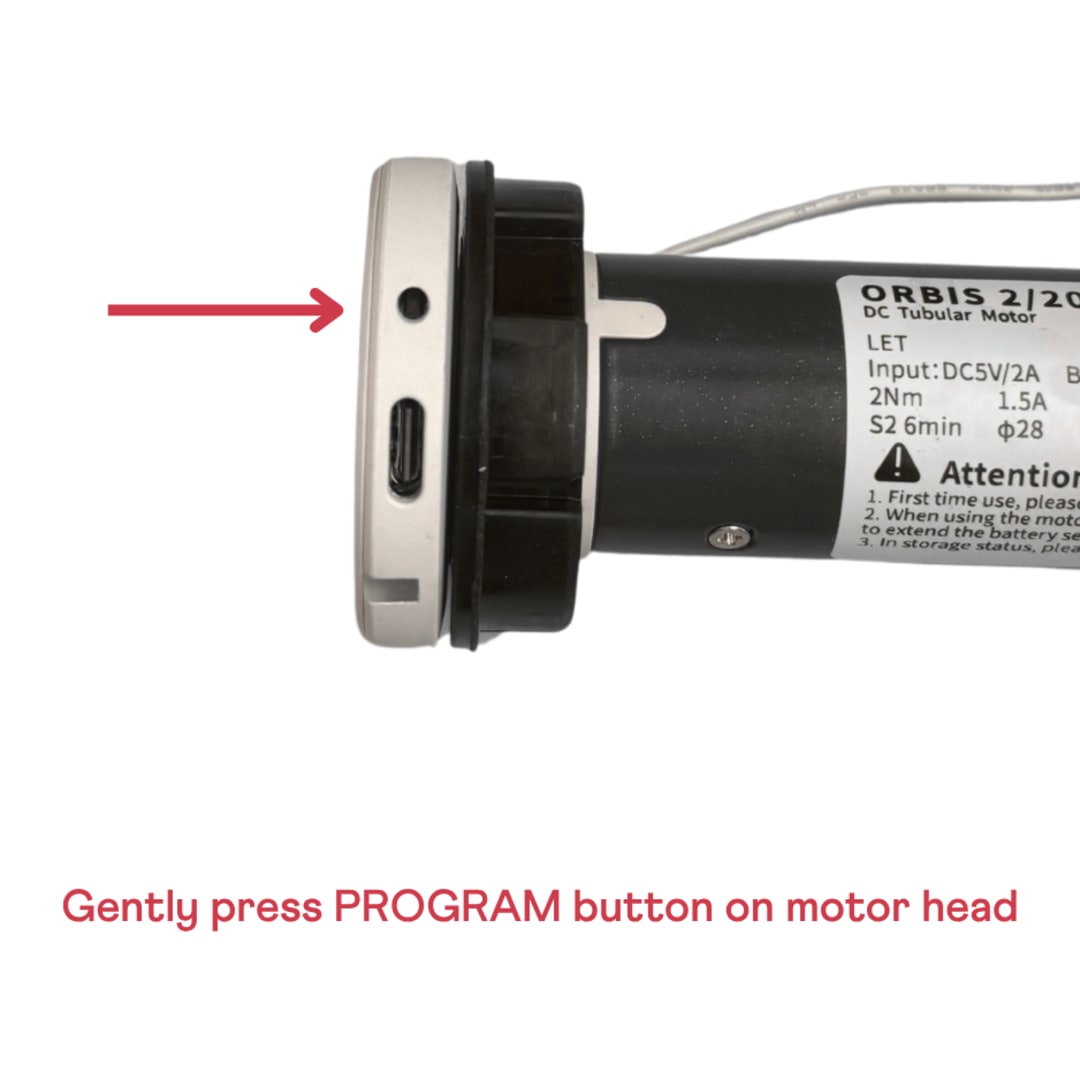
Using the screw or paperclip, gently press and hold the program button on the motor head for 2 seconds.
B
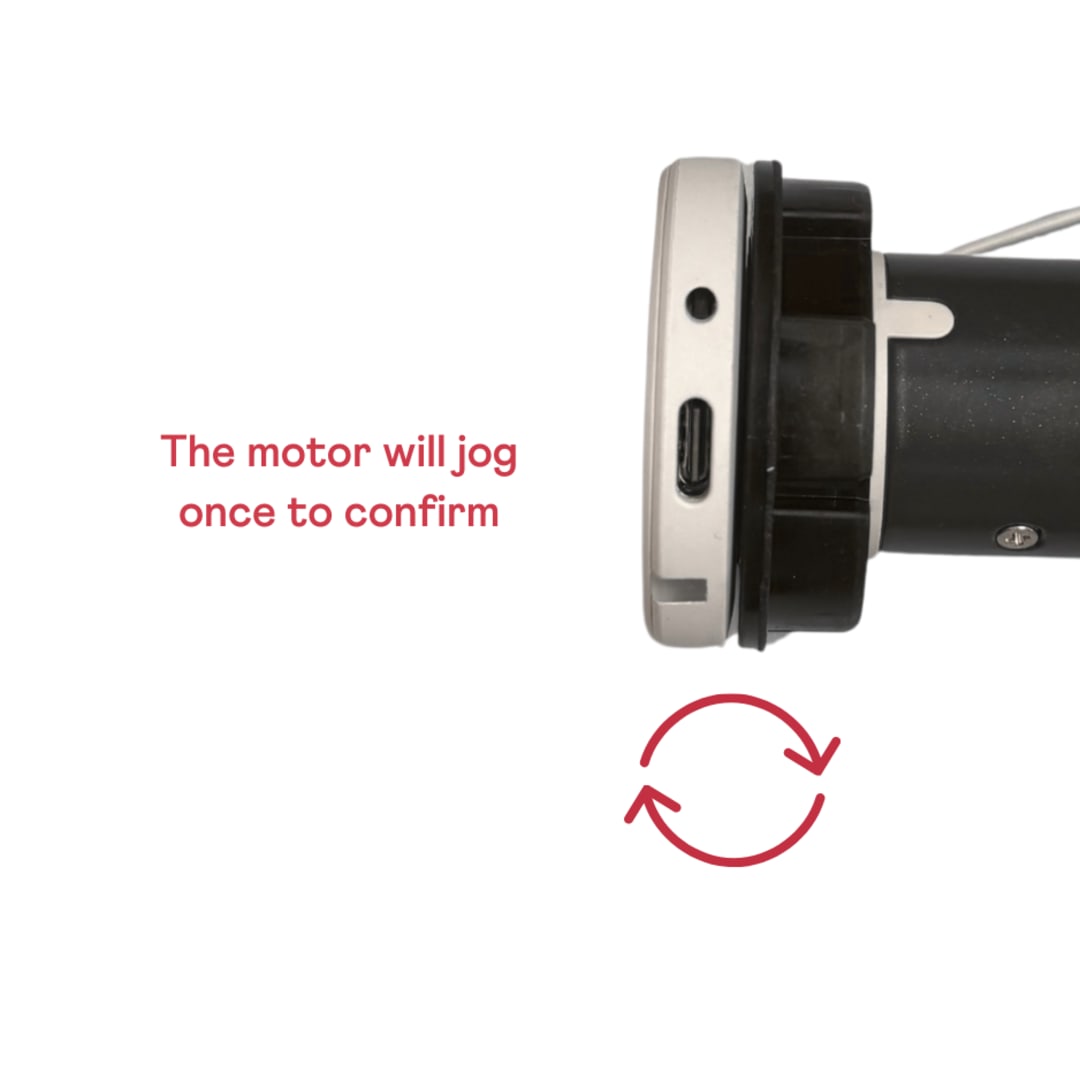
The motor will jog once to confirm.
C
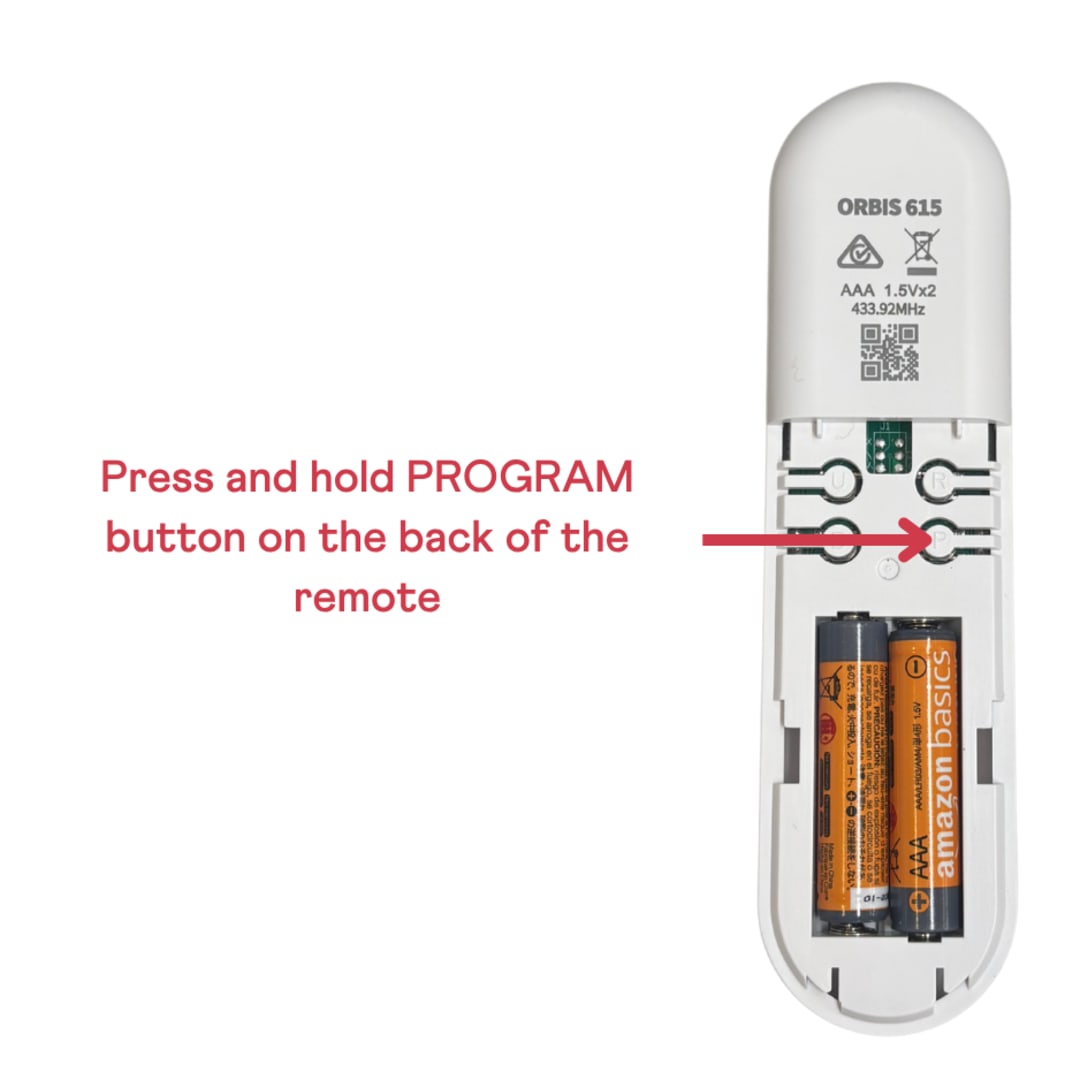
Press and hold the PROGRAM button on the back of the remote control — this is the bottom right hand side button visible when the battery cover is off.
D
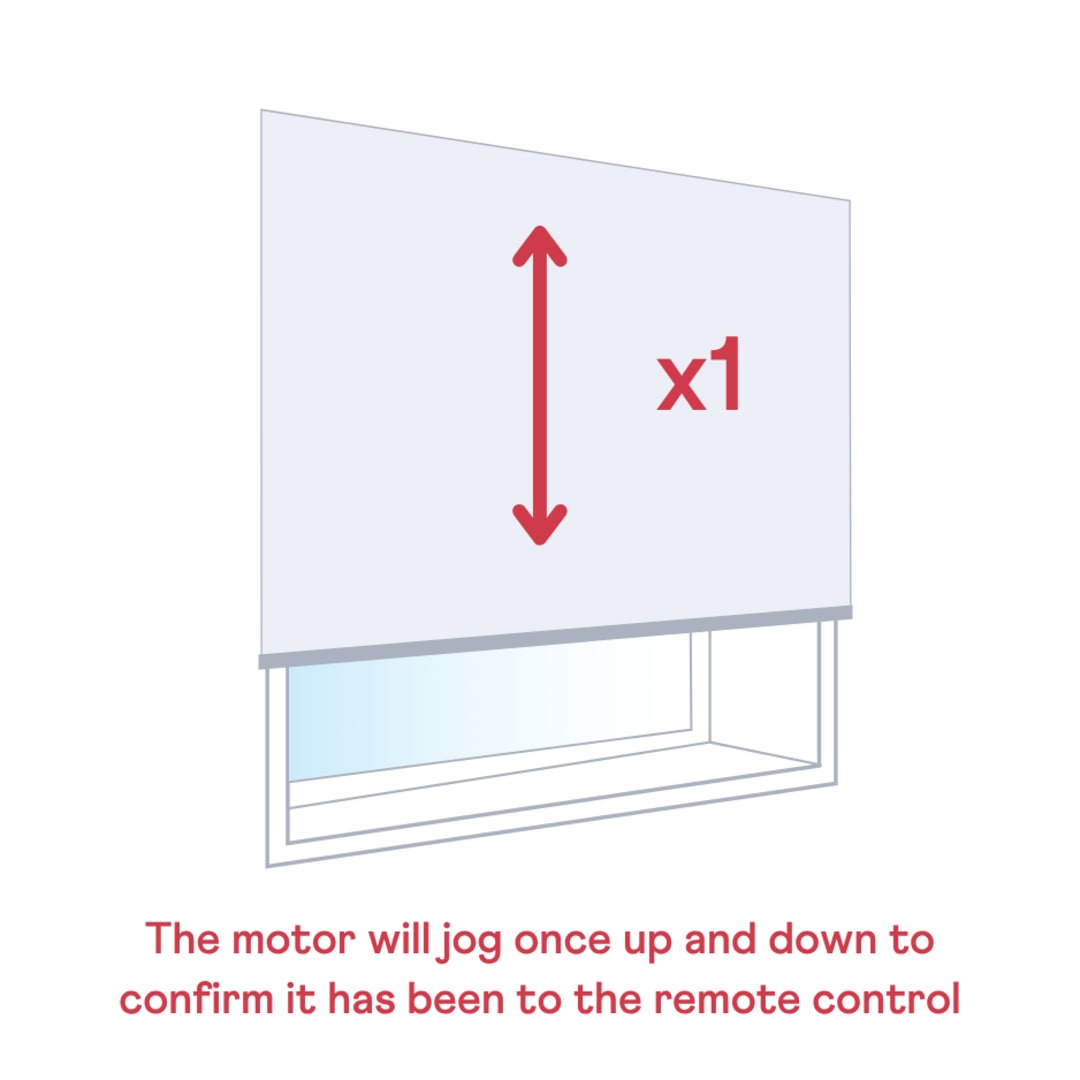
The motor will jog once up and down to confirm it has been paired to the remote control.
You can now put the battery cover on the back of your remote control.
Check the direction
A
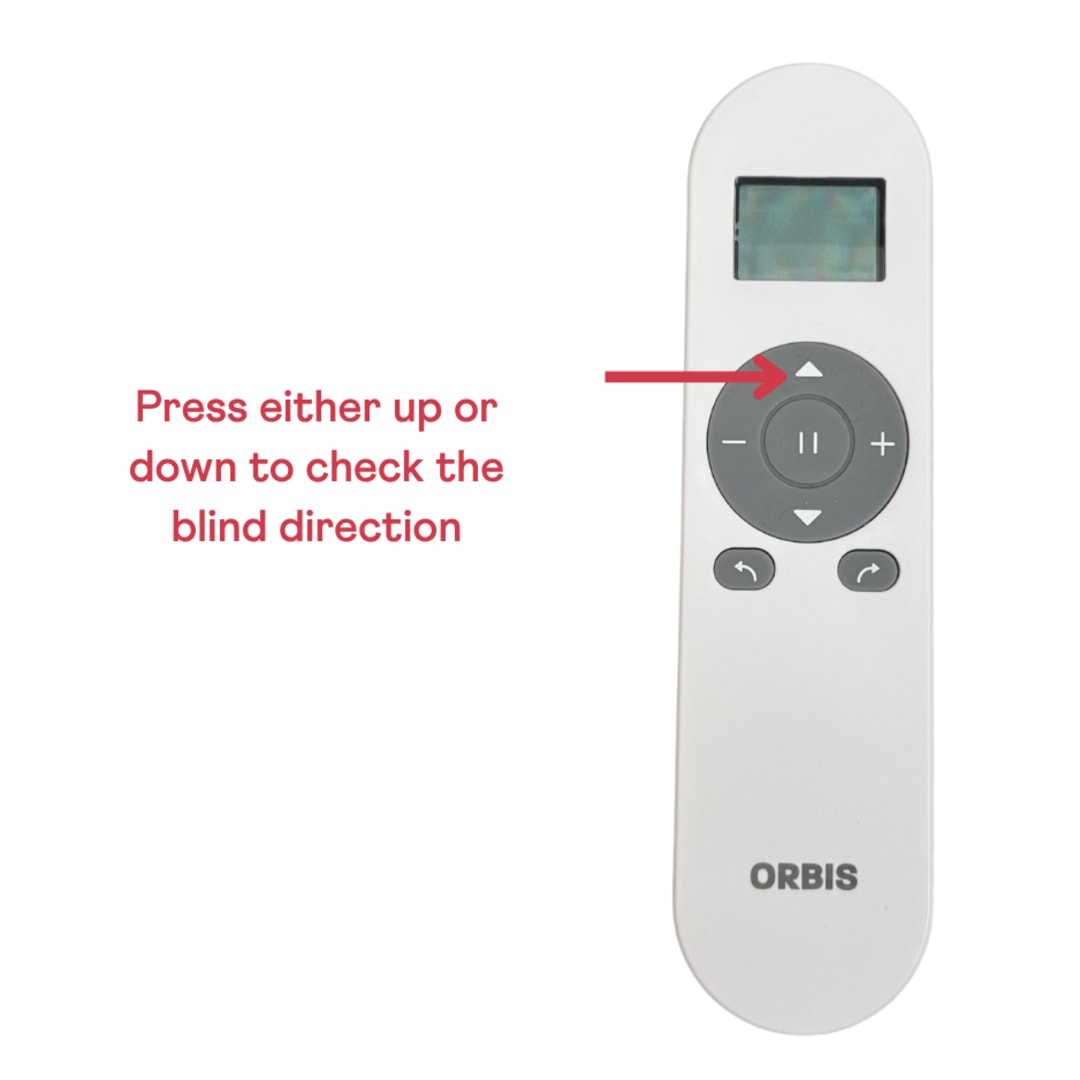
Push the up or down arrow on the remote control a couple of times to confirm which direction the blind moves.
B
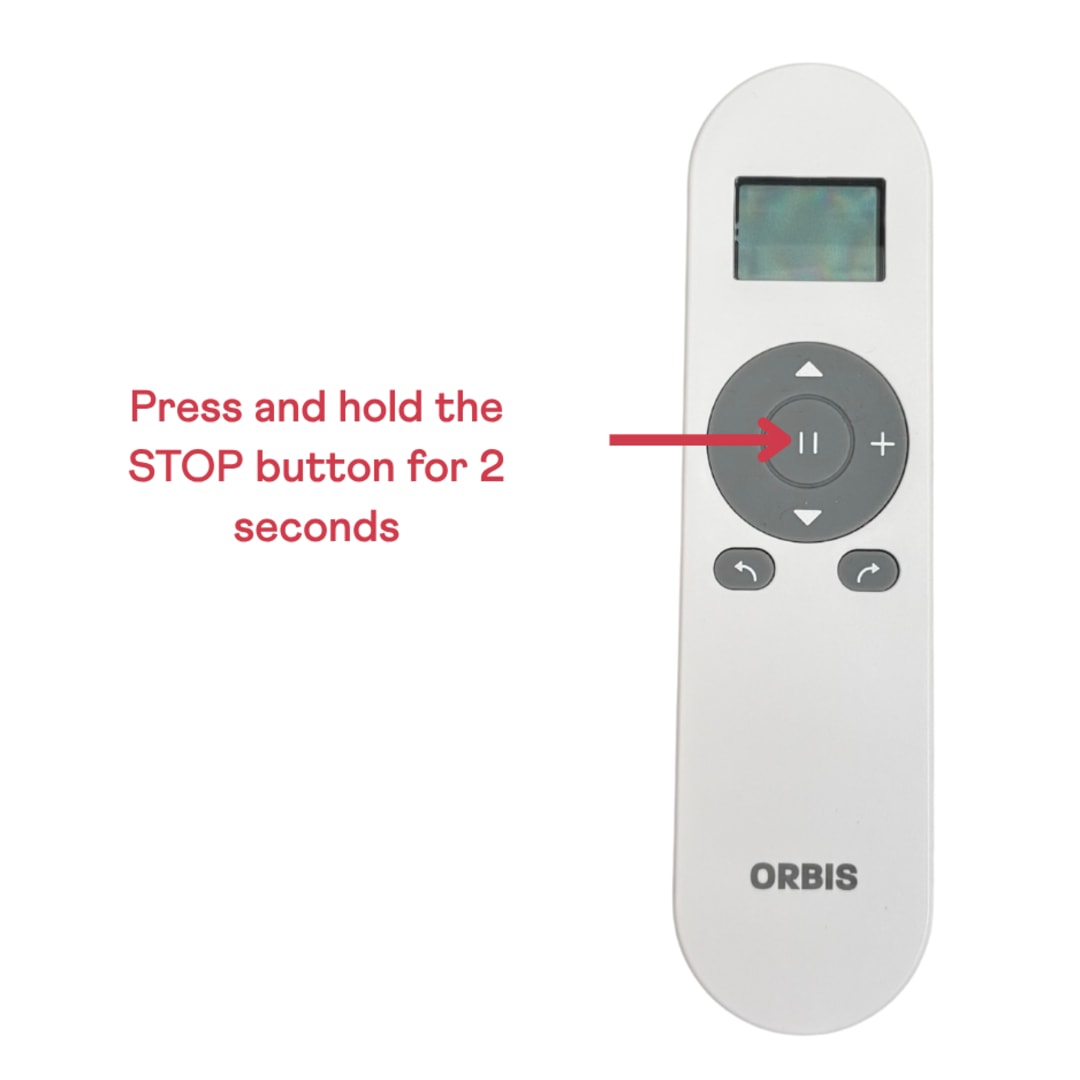
If the direction needs to be changed, press and hold the STOP button for 2 seconds.
C
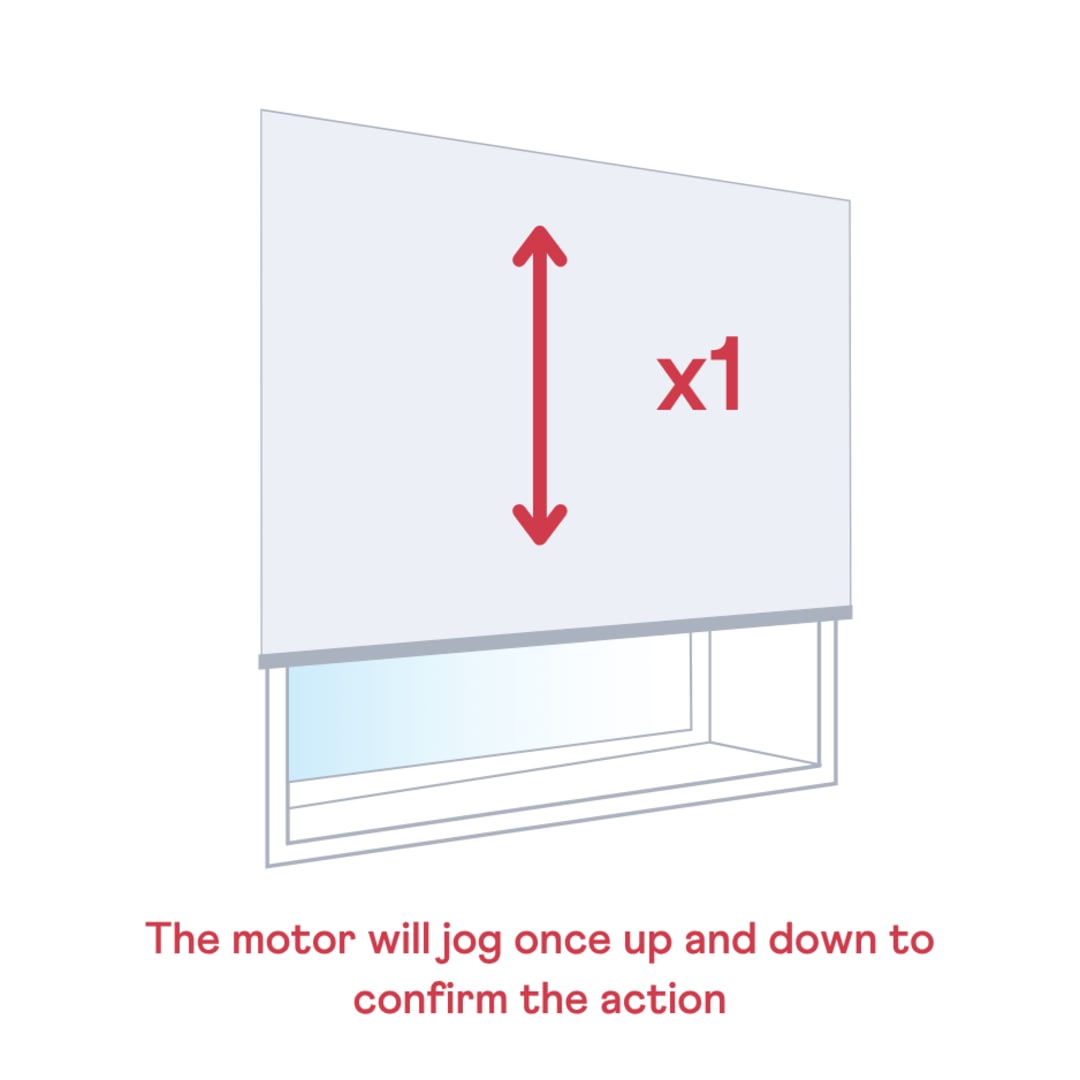
The blind should jog up and down once to confirm the action. You can then test that the direction is now correct on the remote control.
Set your upper limit
A
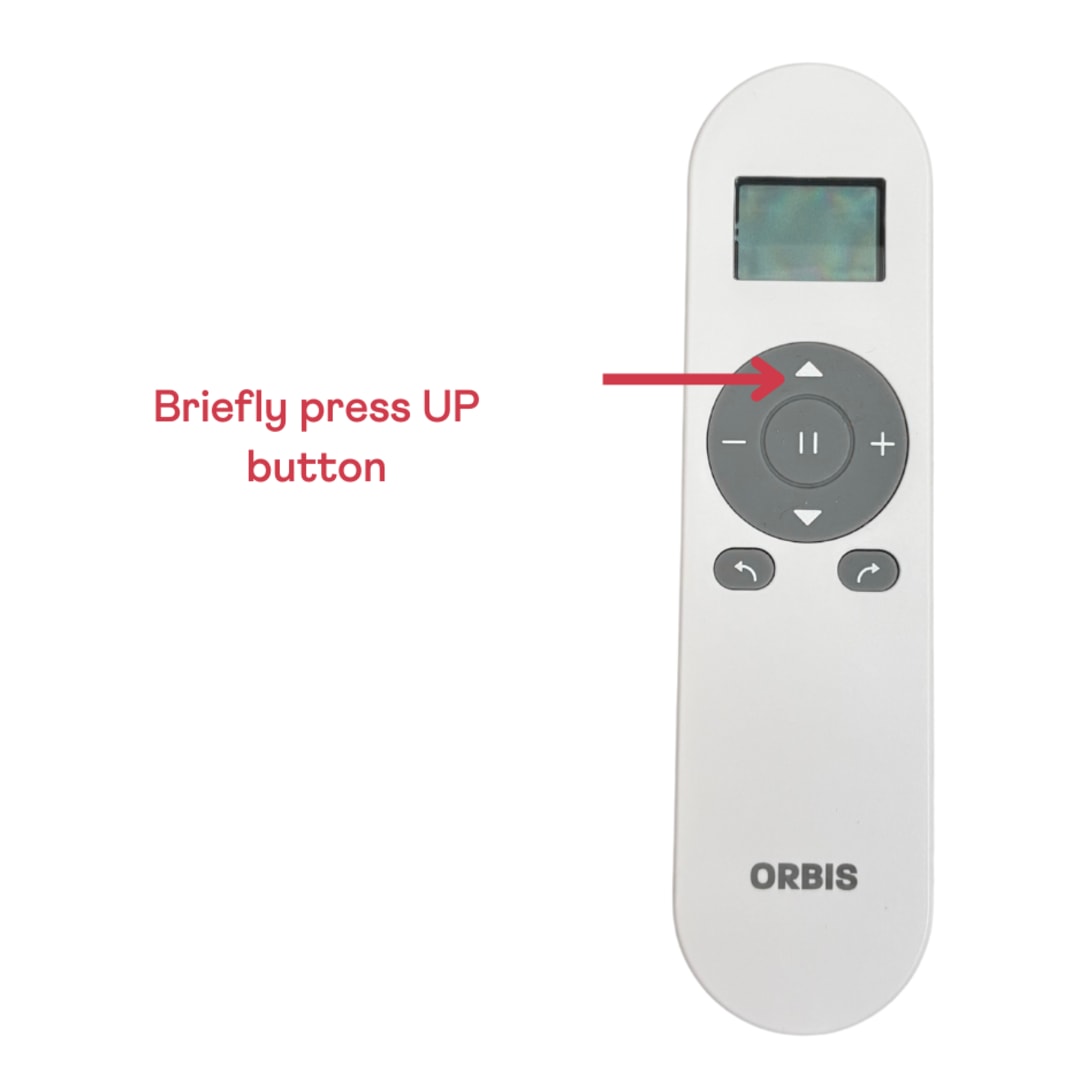
Briefly press the UP button
B
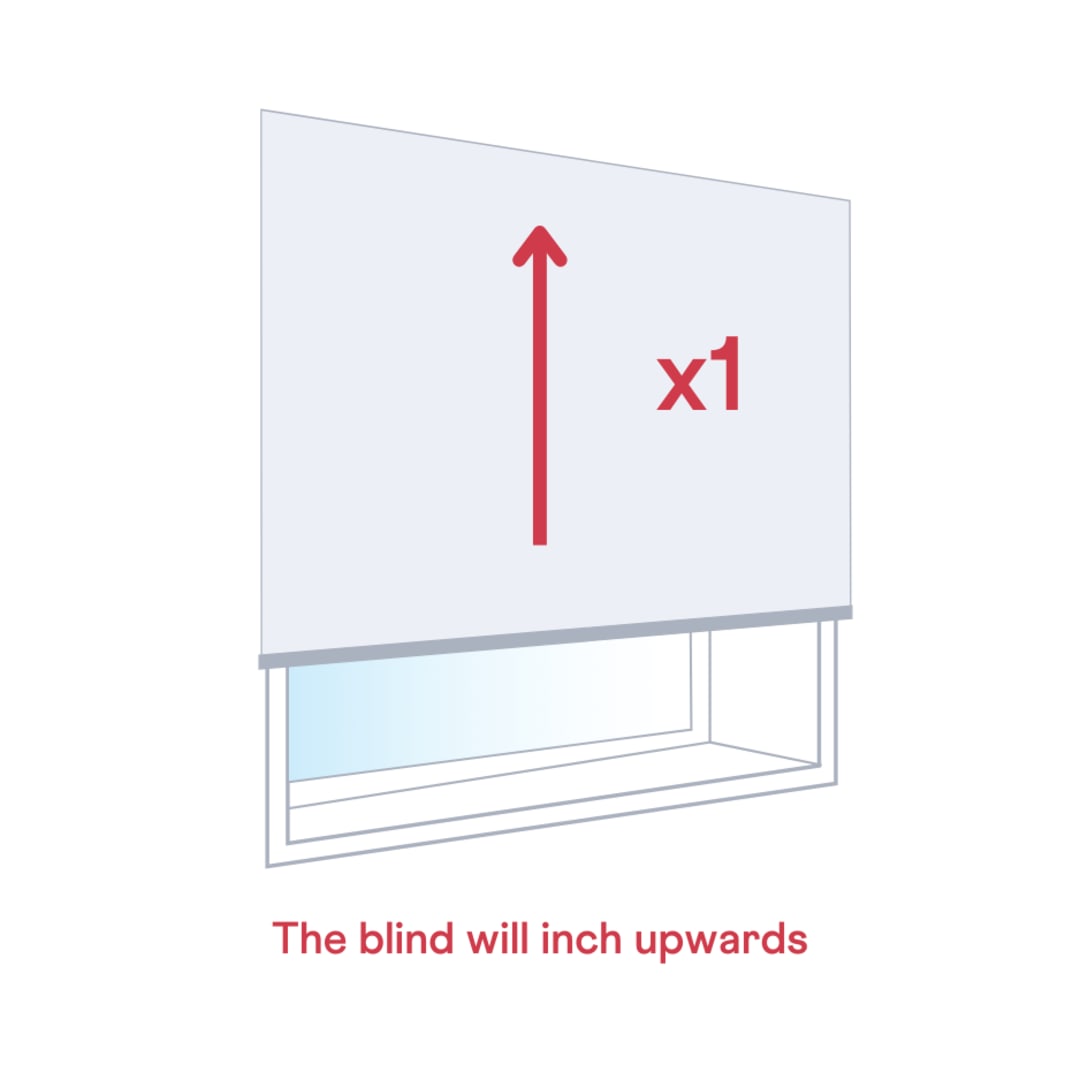
The blind will inch upwards — let the blind run to the desired position.
C
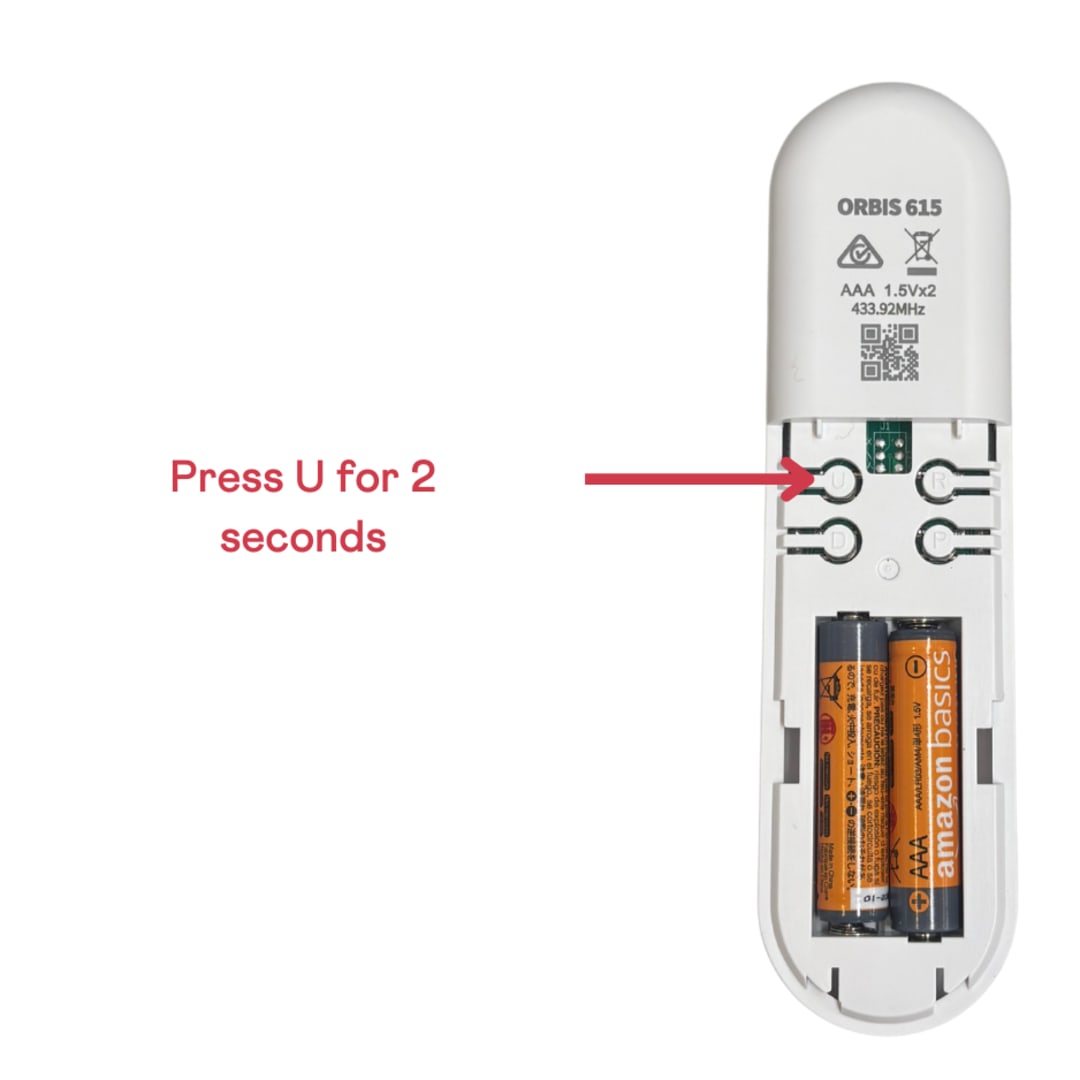
Press the U button on the back of the remote for 2 seconds.
D
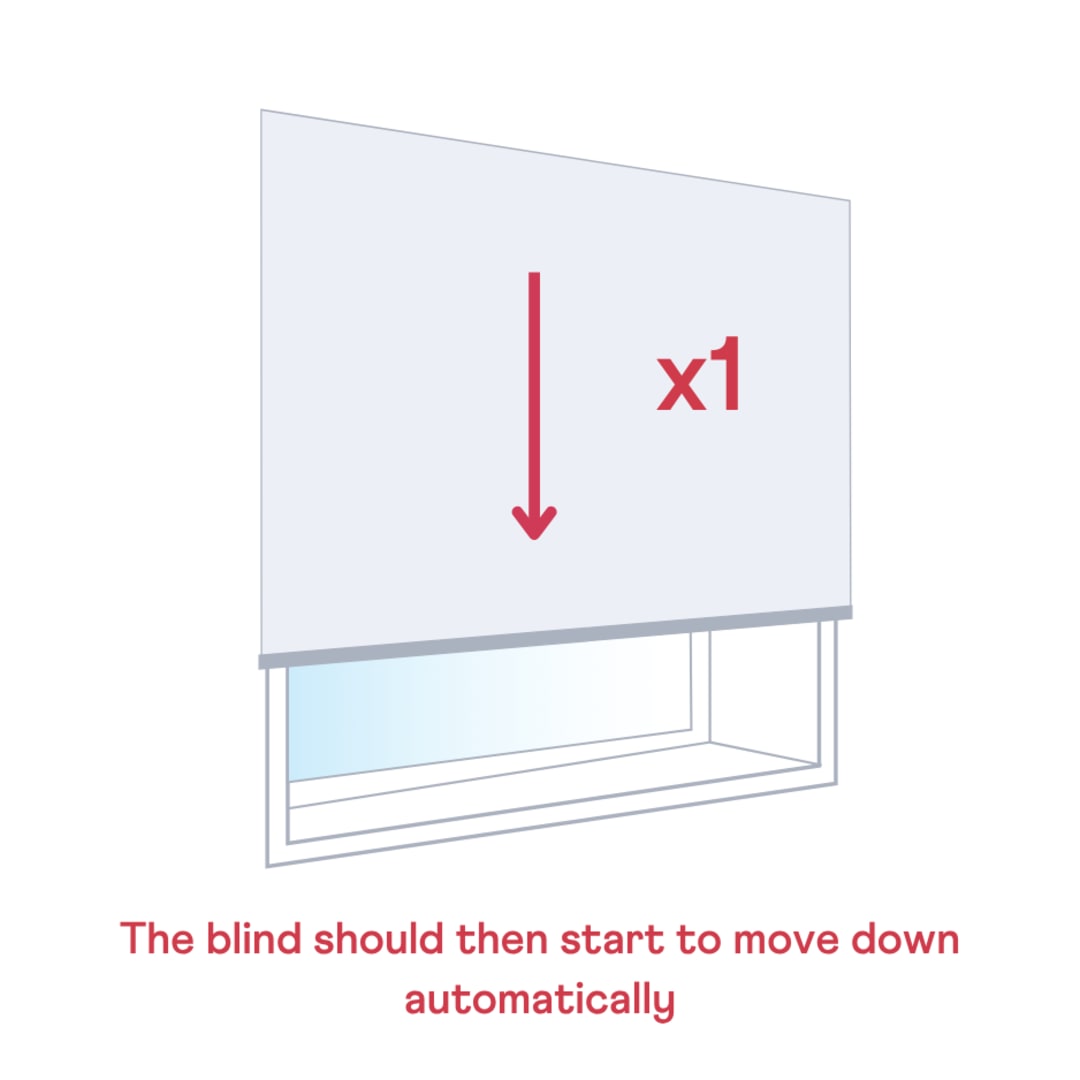
The blind will automatically begin moving down.
Please note: If your blind has a large drop (e.g. over 2000mm), it will pause after 5 seconds during limit setup. Continue pressing the DOWN button each time it stops until the blind reaches your desired limit.
Set your bottom limit
A
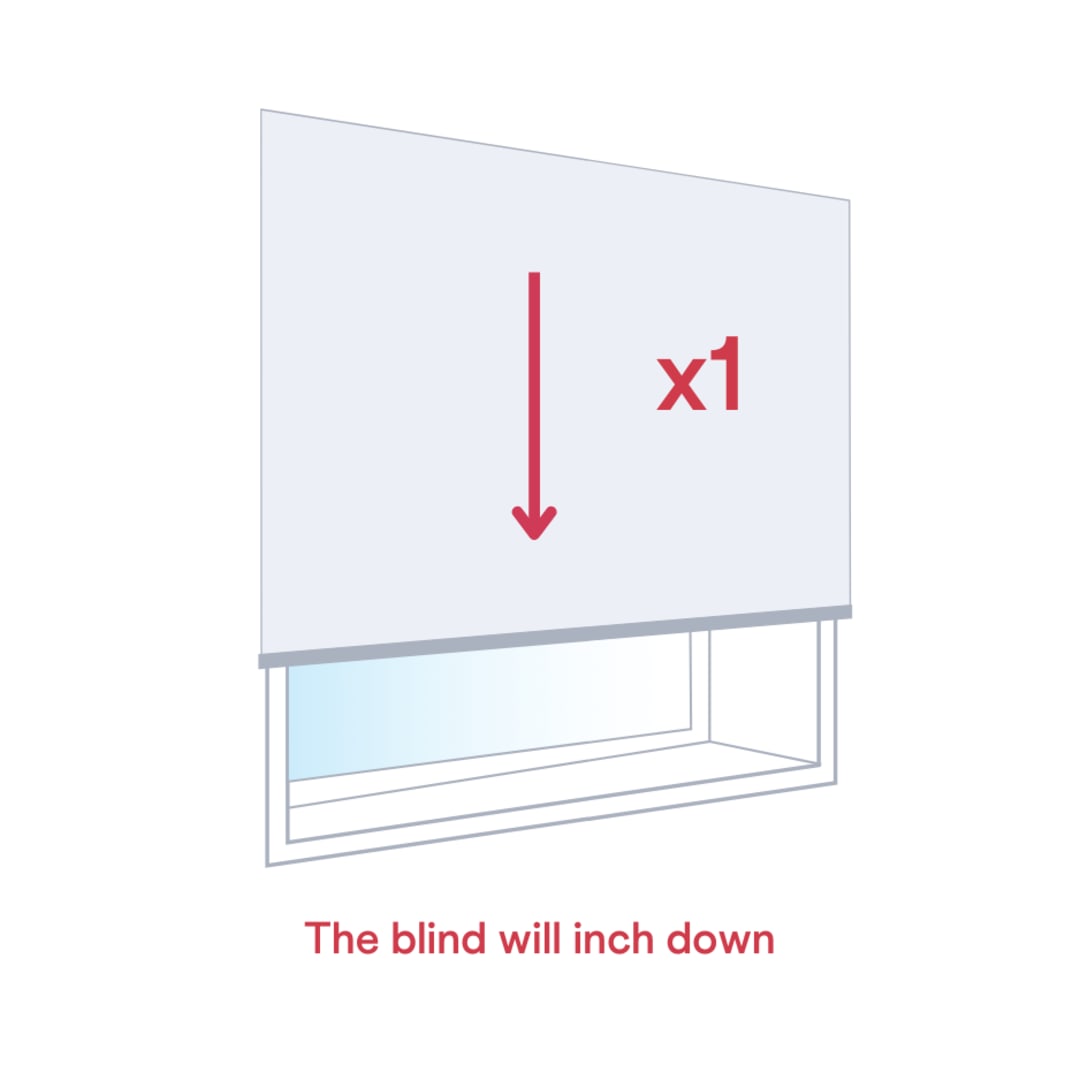
The blind will inch down — let the blind run to the desired position.
B
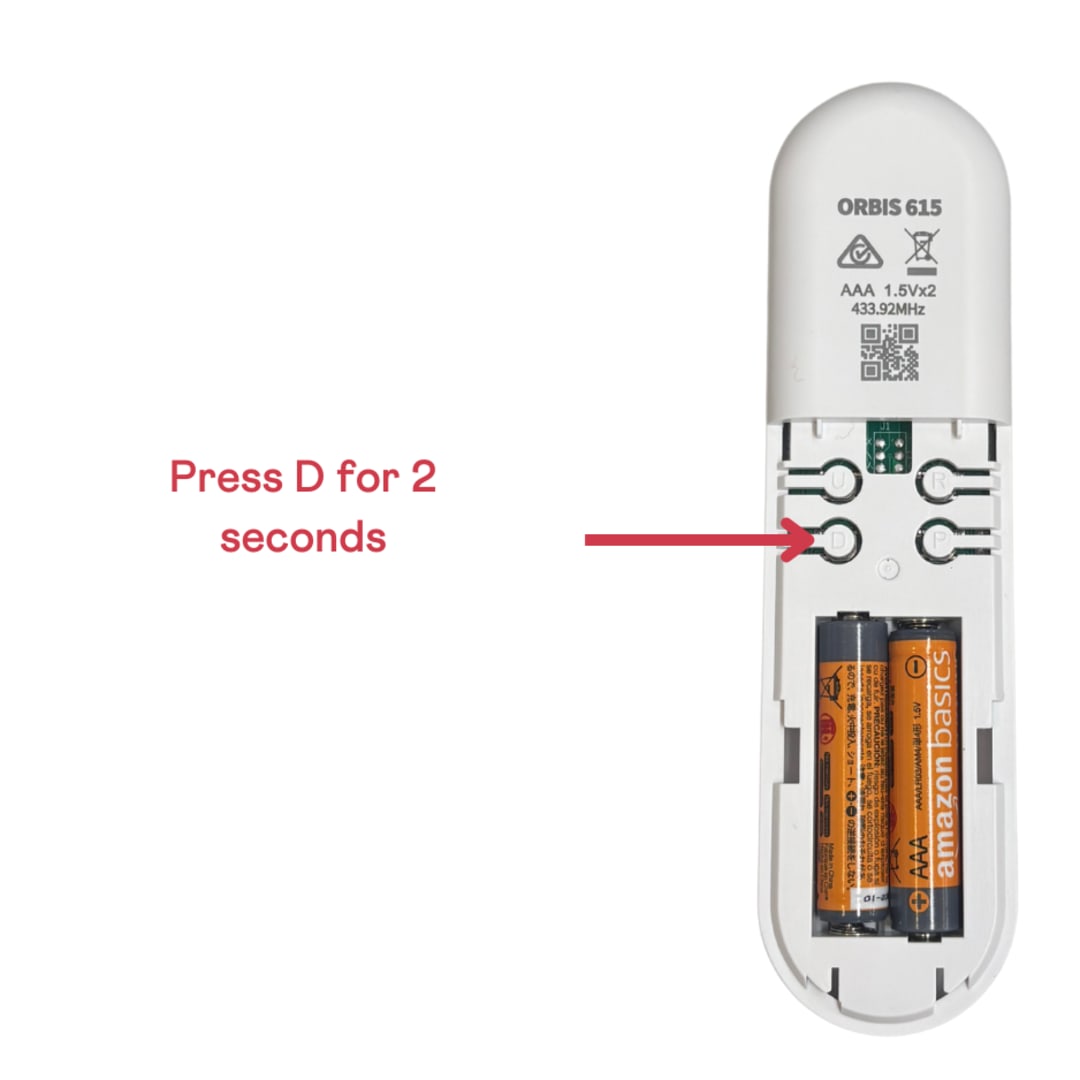
Press the D button on the back of the remote and hold for 2 seconds.
C
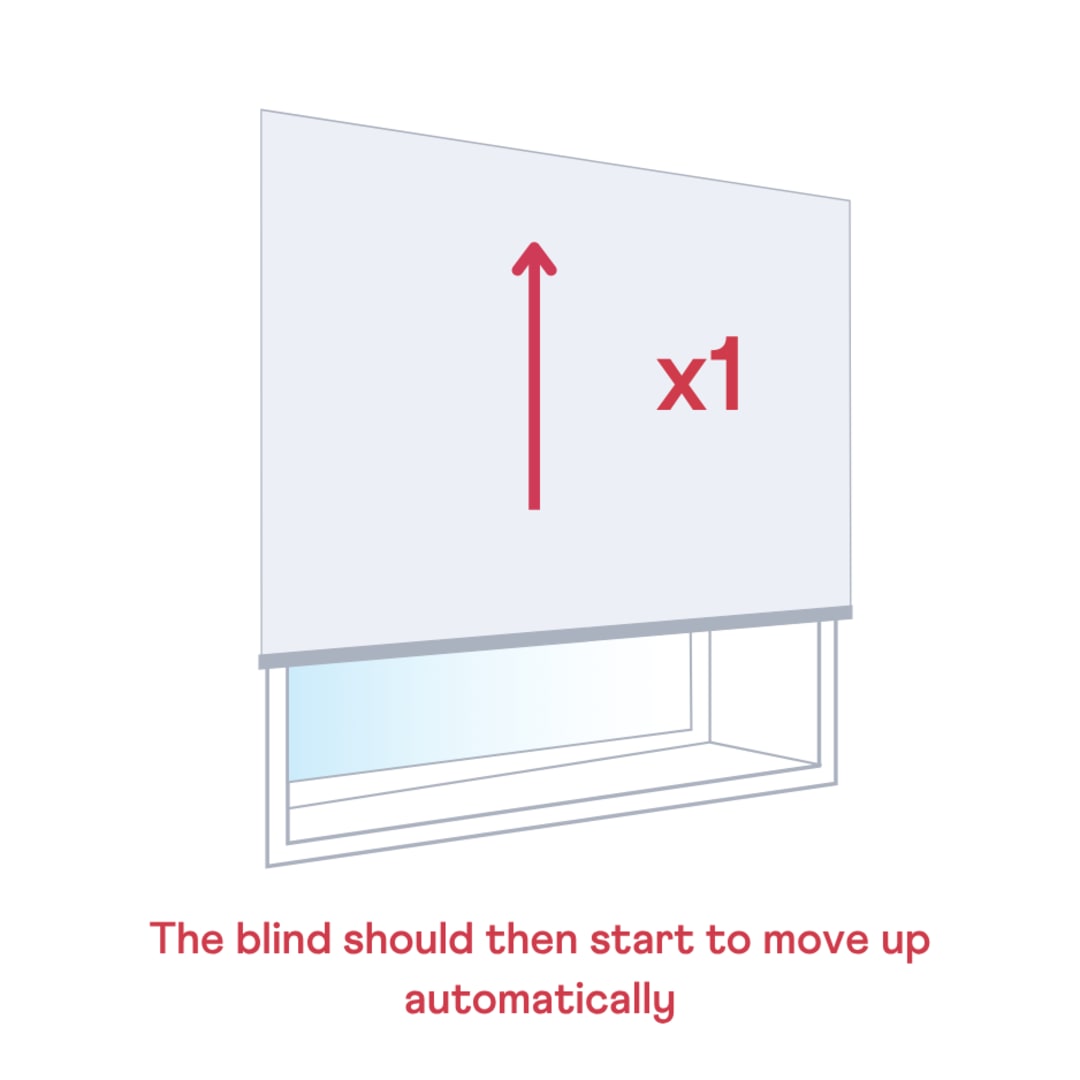
The blind will automatically begin moving up.
Please note: If your blind has a large drop (e.g. over 2000mm), it will pause after 5 seconds during limit setup. Continue pressing the UP button each time it stops until the blind reaches your desired limit.
Allow the blind to travel all the way to the top without interruption. Stopping it mid-journey will reset its memory — let it reach the top and save its limit before proceeding.
Finalising setup/ set your middle limit
A
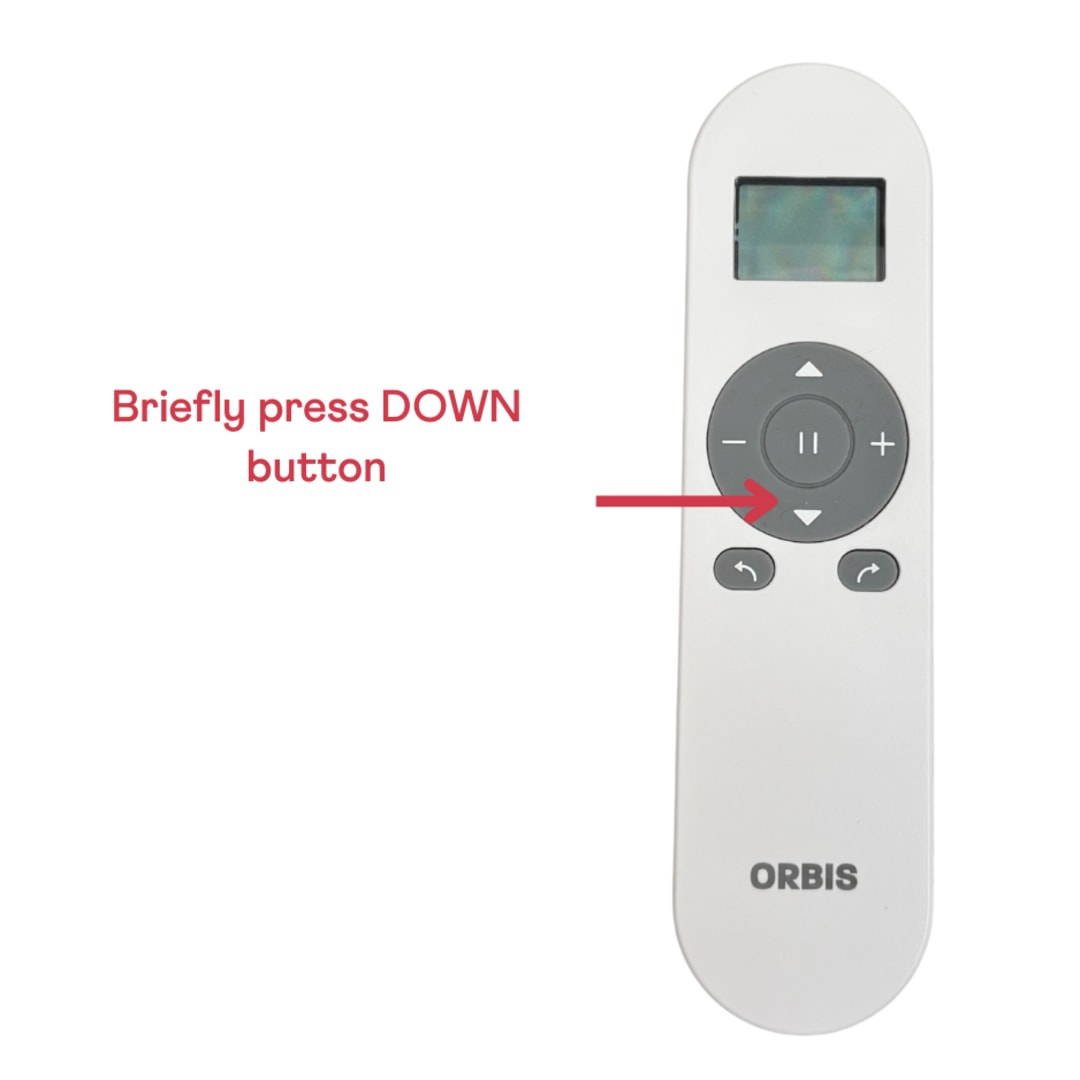
To set a third middle limit, press the DOWN button until you reach the desired position.
B
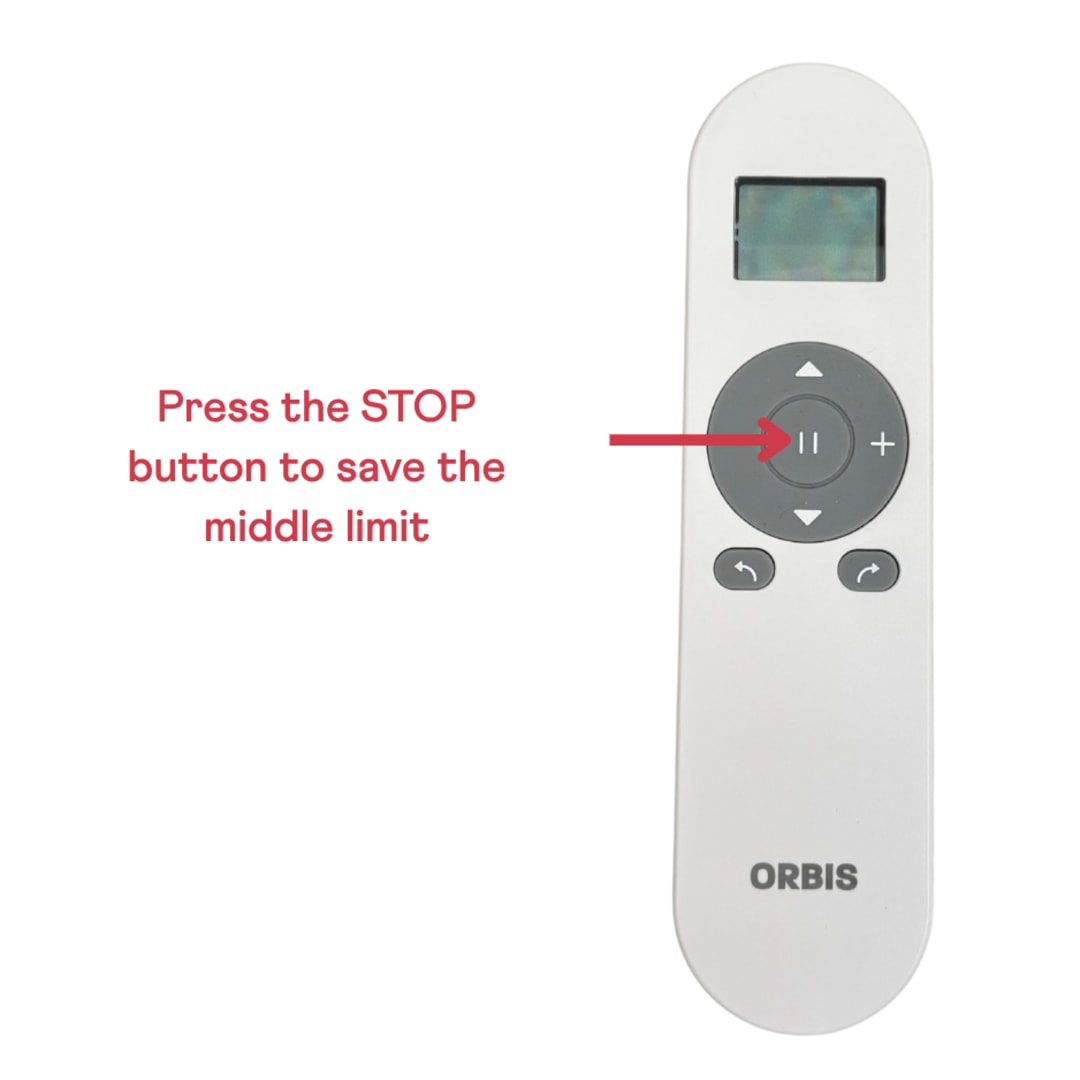
Press and hold the STOP button for 2 seconds to save the middle limit.
Using your blind
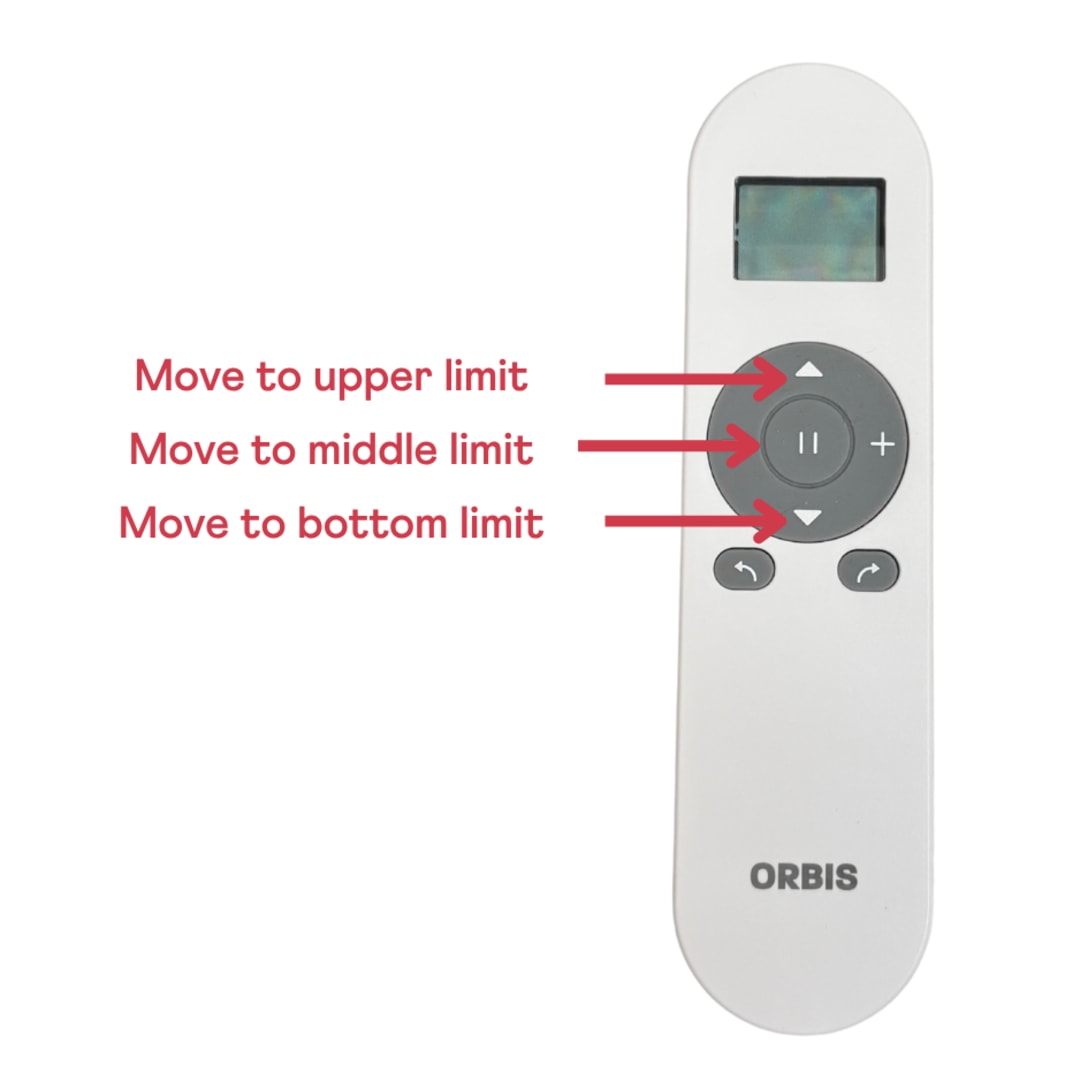
Once all limits are set, press UP to move to the upper limit, STOP to move to the middle limit, or DOWN to move to the bottom limit.
I need some extra help
Yes. You will need to put the motors into sleep mode once programmed so that it doesn’t interfere with the programming of the additional blinds.
A
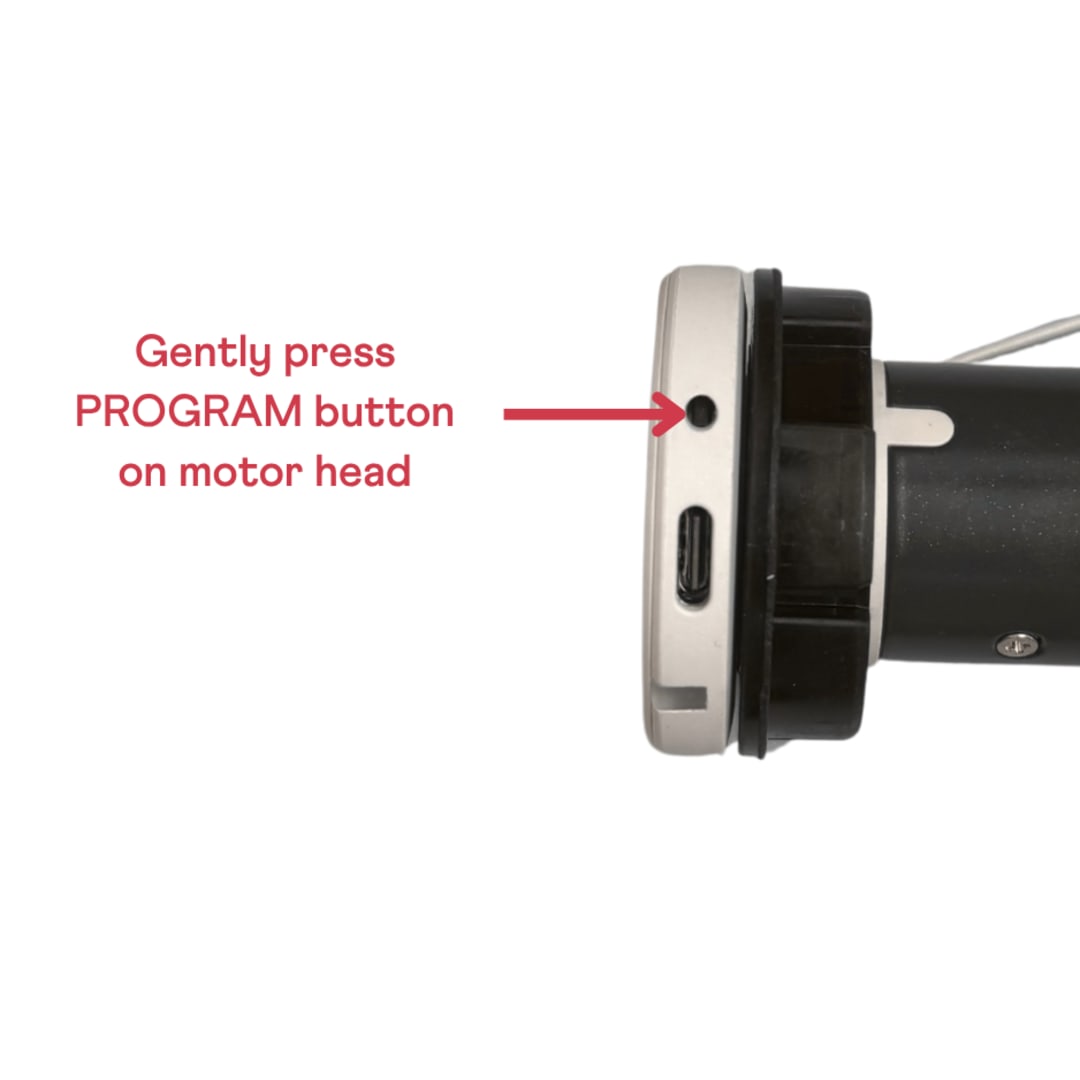
Once you have setup a blind, put the motor into sleep mode by pressing the program button in the motor head (using a screw or paperclip) for 2 seconds.
B
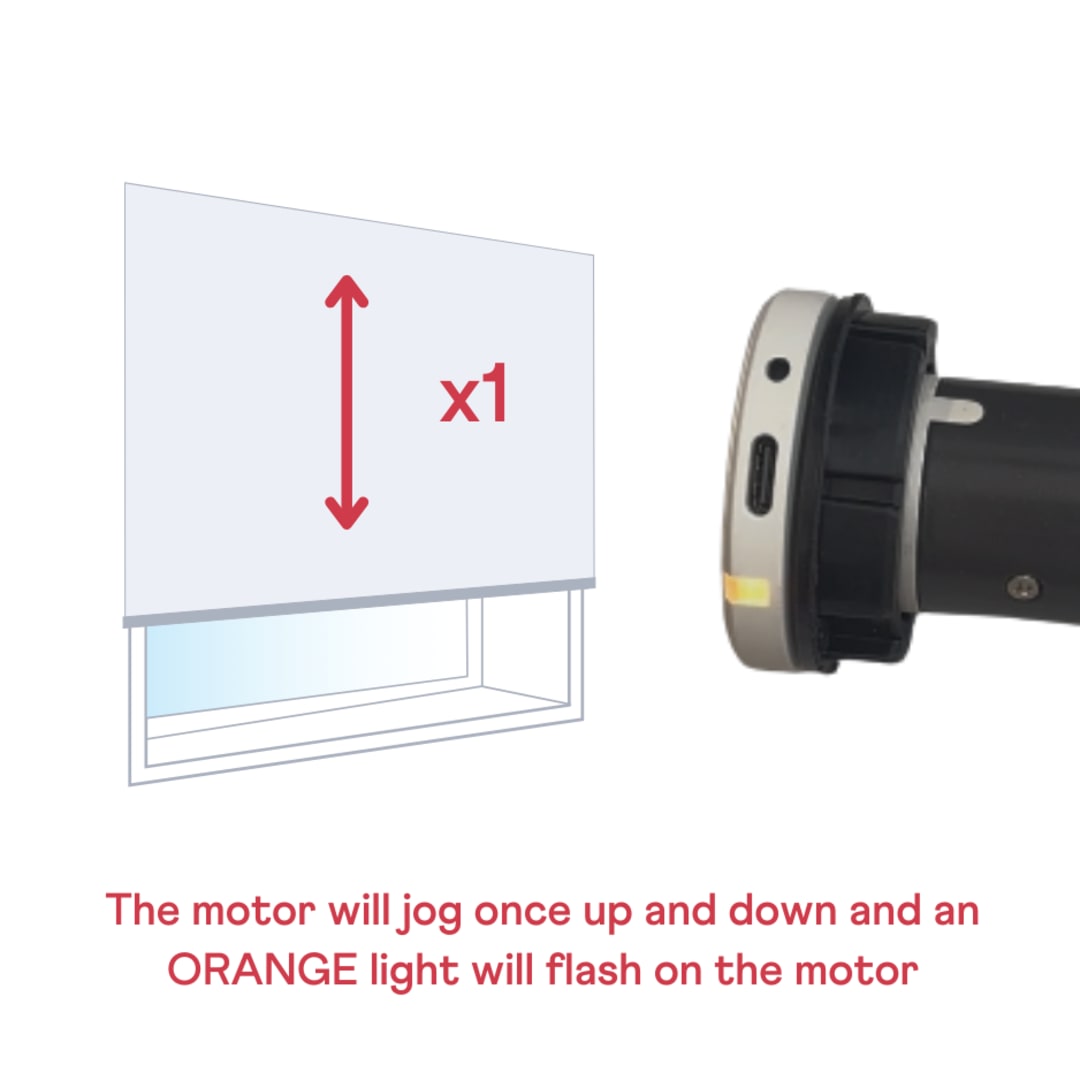
The motor will jog the blind up and down once and an orange light will flash.
C
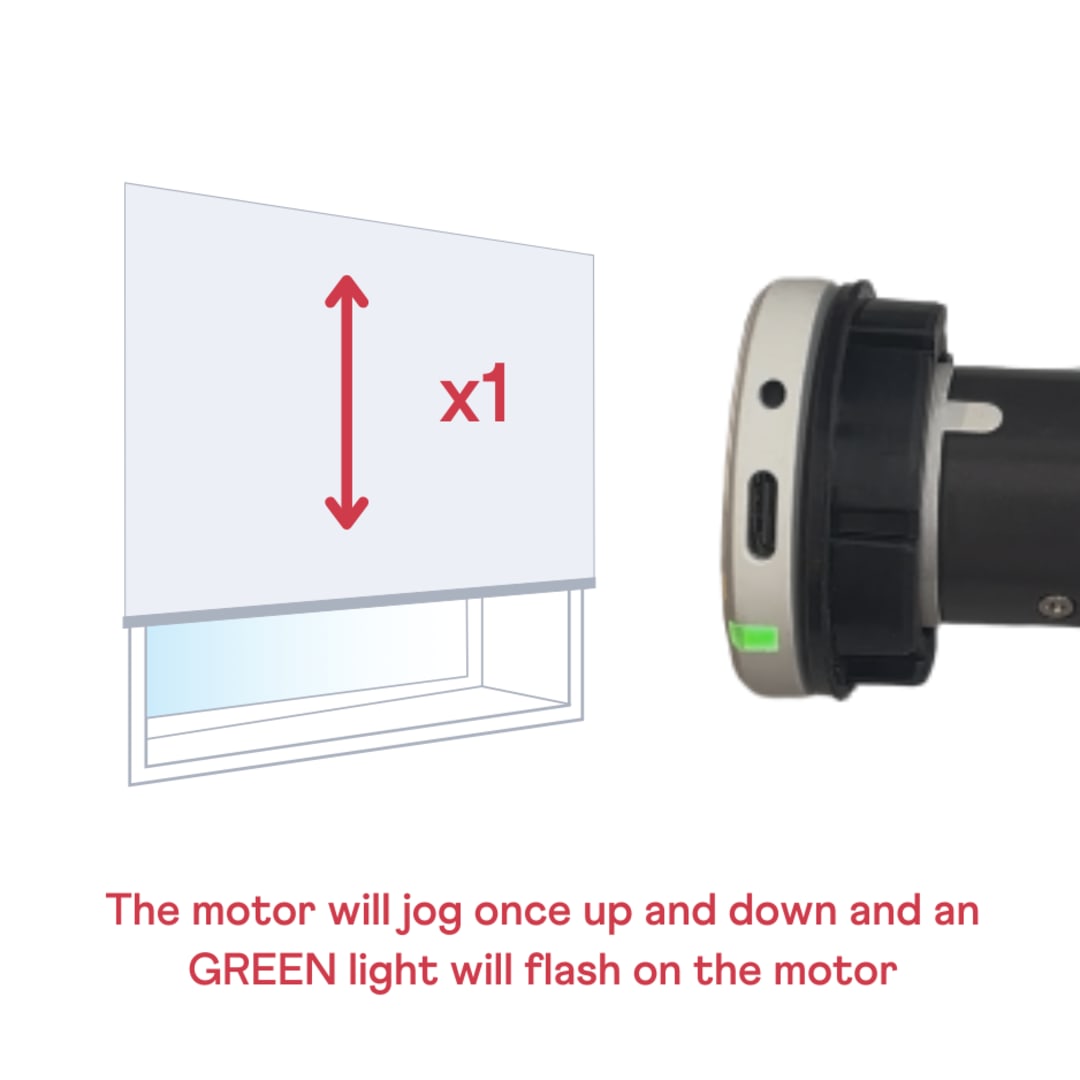
You will then need to press the program button again for 2 seconds (within 2 mins of the orange light flashing). The motor will then jog once and a green light will flash 5 times and then go out. The blind motor is now in sleep mode.
If your blind doesn’t jog, start by checking whether the motor’s battery is low. If charging the motor doesn’t fix the issue, you’ll need to perform a factory reset and re-set up your motor. Follow the steps in the next bullet point to complete a factory reset.
A
To reset the motor to factory settings, press and hold the program button on the motor head (with a screw or paperclip) for 12 seconds.
B
The motor will jog up and down 3 times during the process, continue to hold until the orange light on the motor stays on.
You can then go straight to Step 3 above as the motor is already activated and will just need to be paired with the remote control.
A
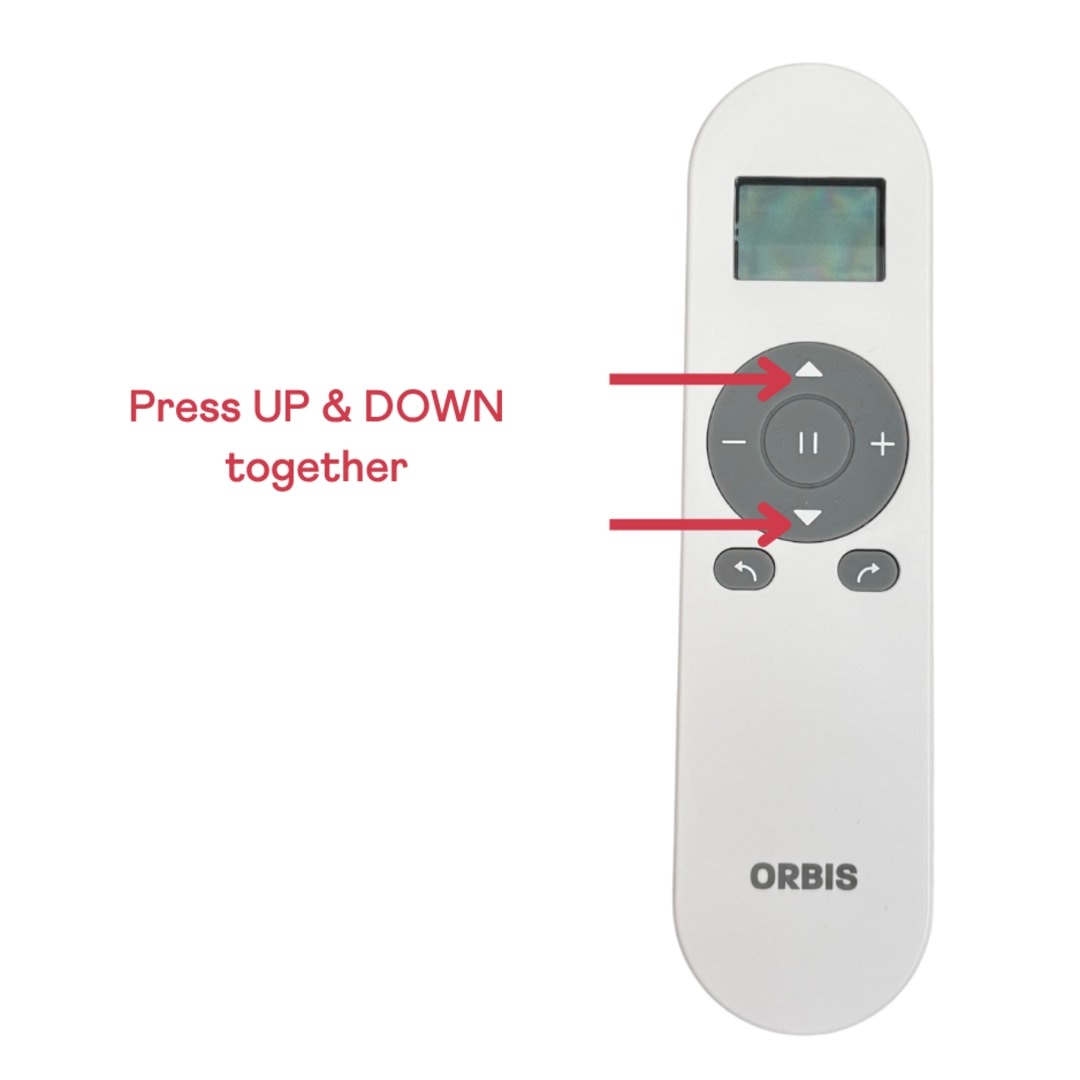
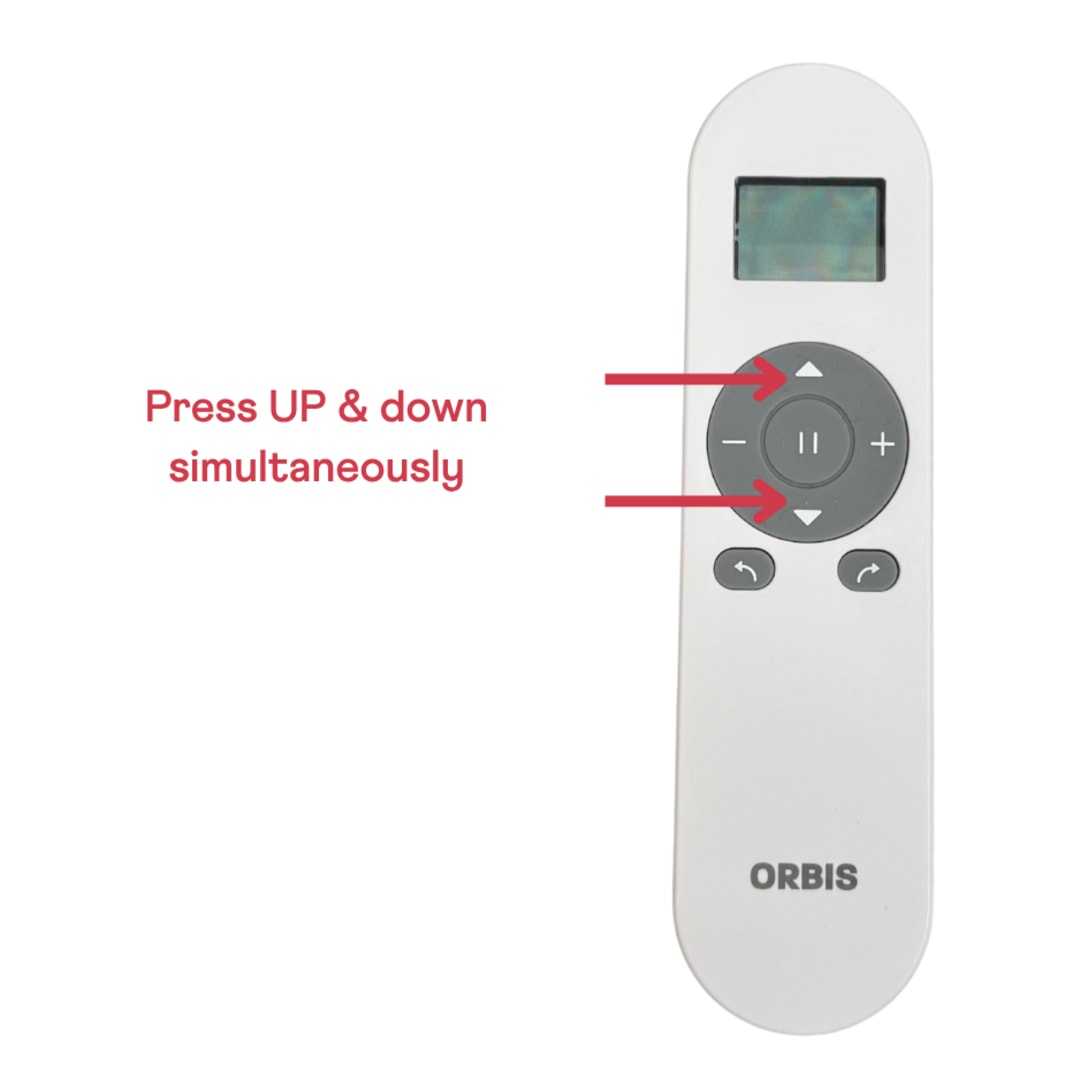
Press UP and DOWN simultaneously — the blind will jog to confirm.
B
To adjust the top limit: move the blind to the top position, then follow the top limit instructions in Step 6.
C
To adjust the bottom limit: move the blind to the top position, then follow the top limit instructions in Step 7.
The Orbis motor has two speed settings. Please note that selecting the higher speed will result in slightly increased motor noise.
A
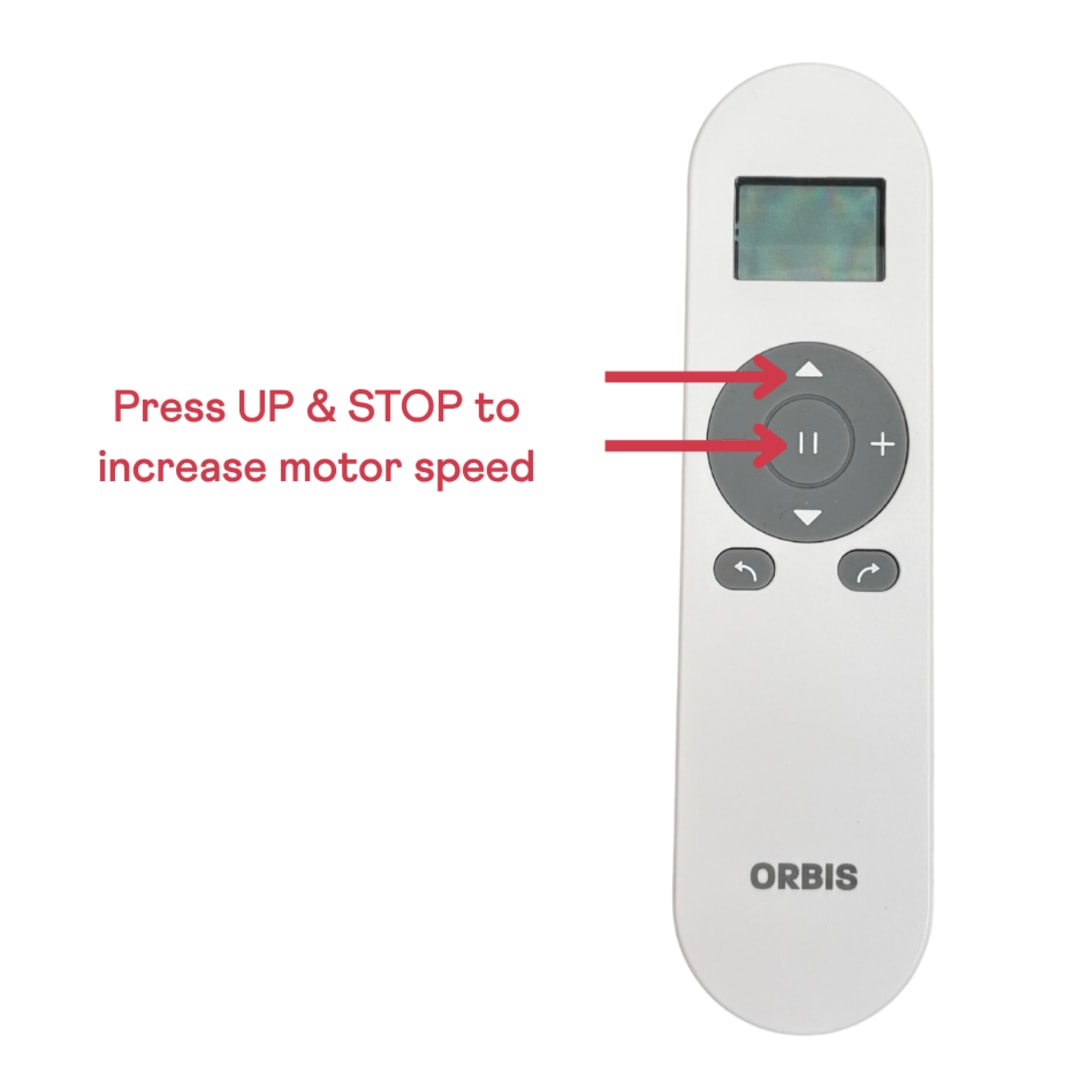
To increase the motor speed: Press UP & STOP together.
B
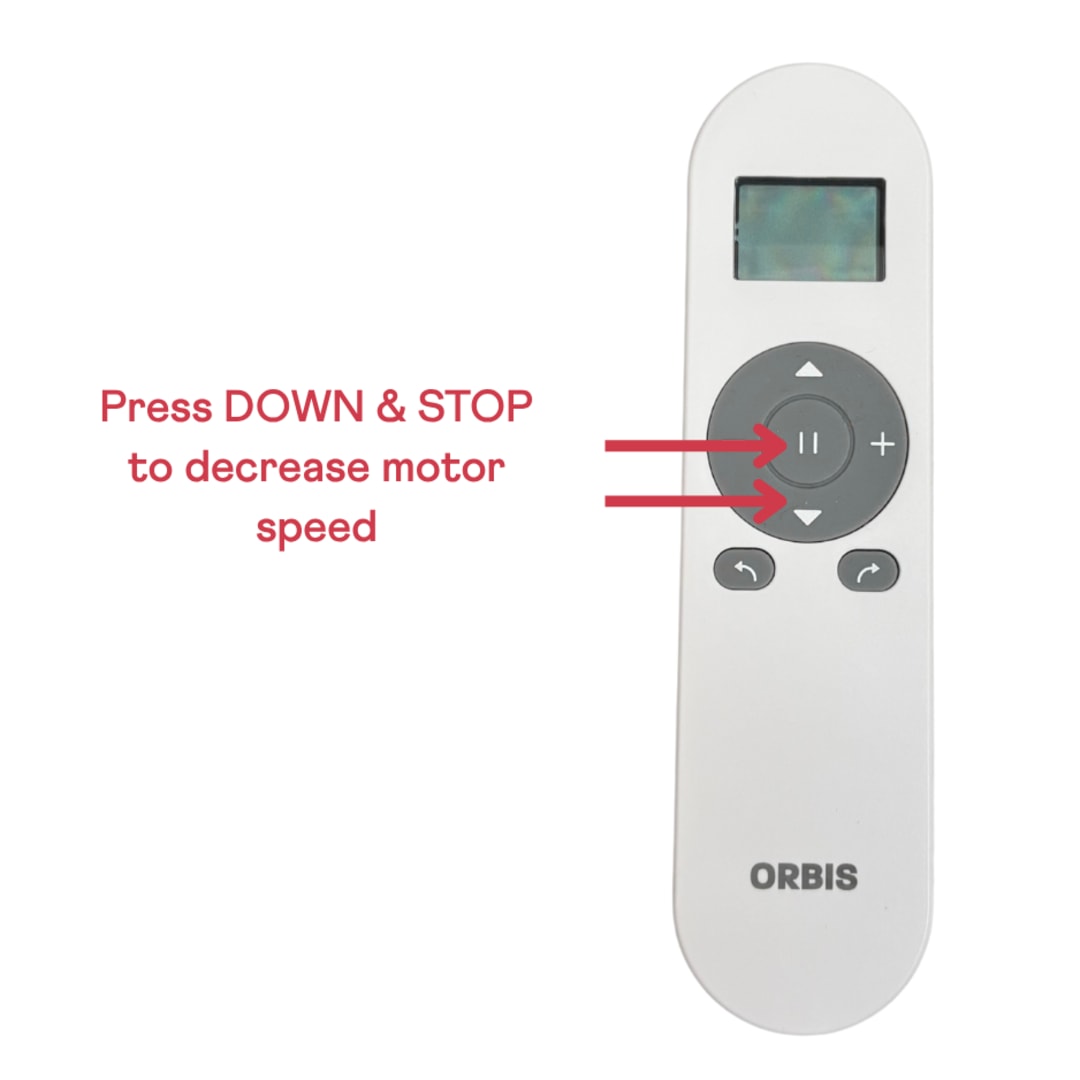
To decrease the motor speed: Press DOWN & STOP together.