Regional? Order by 11 Nov for XMAS

Check

The easy way to set up your Somfy remote control for motorised blinds.

Welcome to our simple guide to setting up your remote control for your motorised roller blinds, double roller blinds and linked blinds. You're going to love just how quick and easy it is to use your new Somfy control.

What you'll need to install

People Icon

1 person

Time Icon

less than 5 minutes per blind

Tools required

  • a step ladder (to access your motor)
  • a paper clip or pin

Before you get going

Are your blinds already installed?

You'll need to install your roller blinds, before you set up your remote control.

Is your Somfy motor charged?

For battery powered motors that are brand new, you'll need to fully charge the motor before you start. See 'I need extra help' at the bottom of this page. For wired motors you don't need to worry about charging the motor.

Your custom kit
A

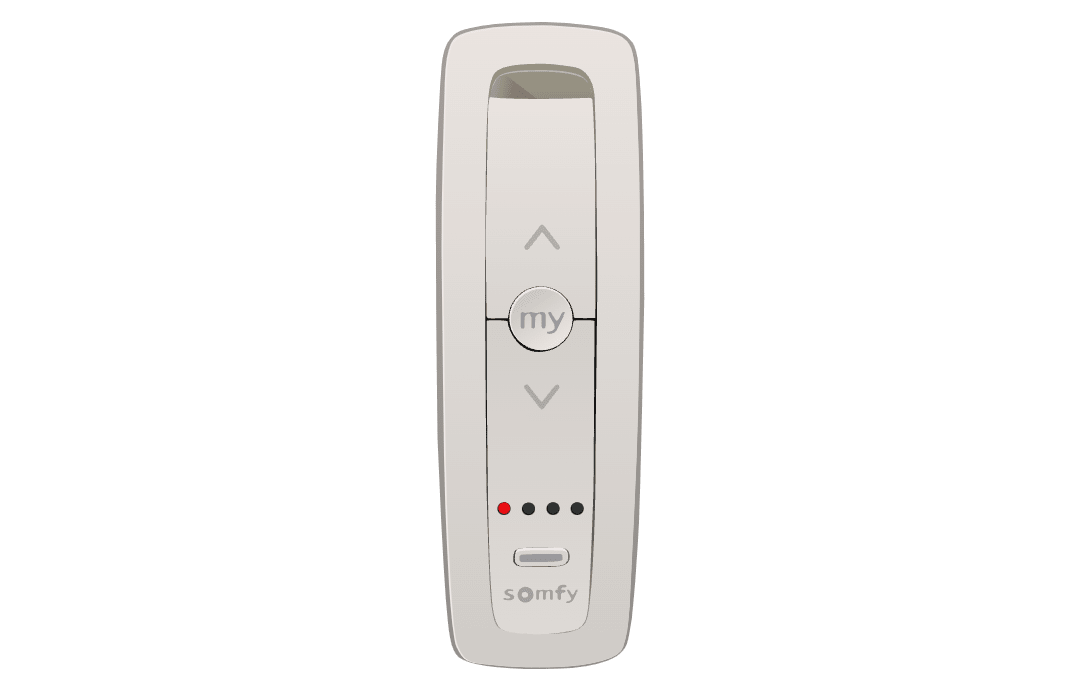
Your Somfy remote (1 or 5 channel)
B

Your installed motorised roller blind(s)
C

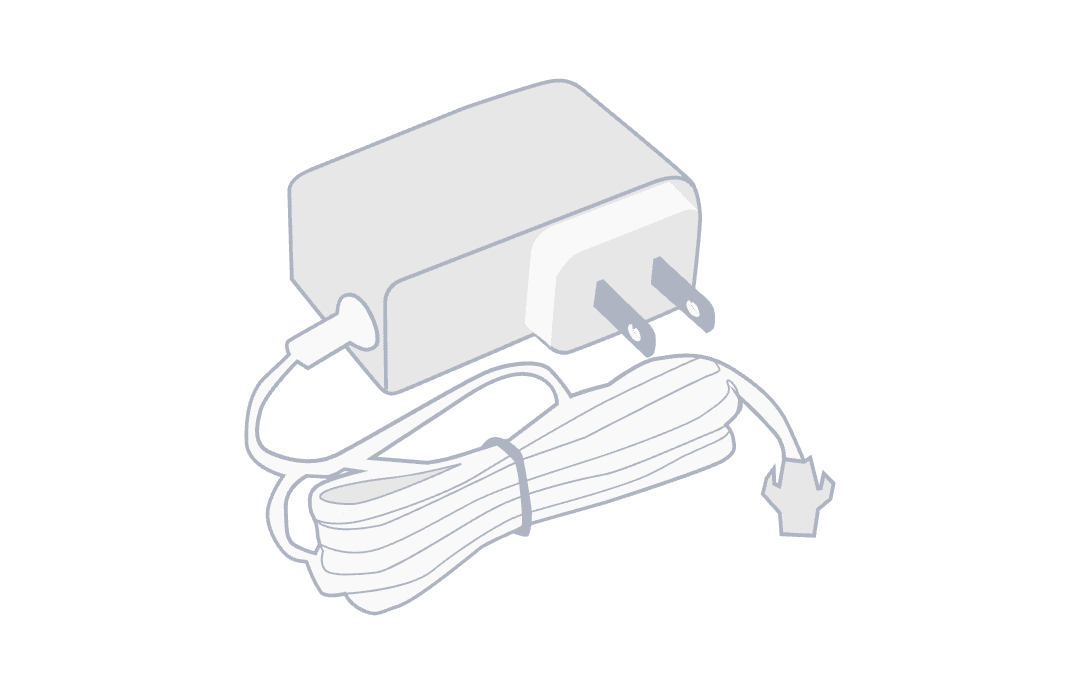
Your Somfy battery charger (only for battery powered motors, in case they need charging)

OK it's time to start setting up, let's take it step by step.

Somfy Altus & Sonesse (Battery Powered)
Somfy Altus & Sonesse (Wired)
Grouping your blinds

Setting up your remote is easy. Follow these steps, then kick back and enjoy your motorised blinds. Here's how to do it:
1

Wake up your blind motor

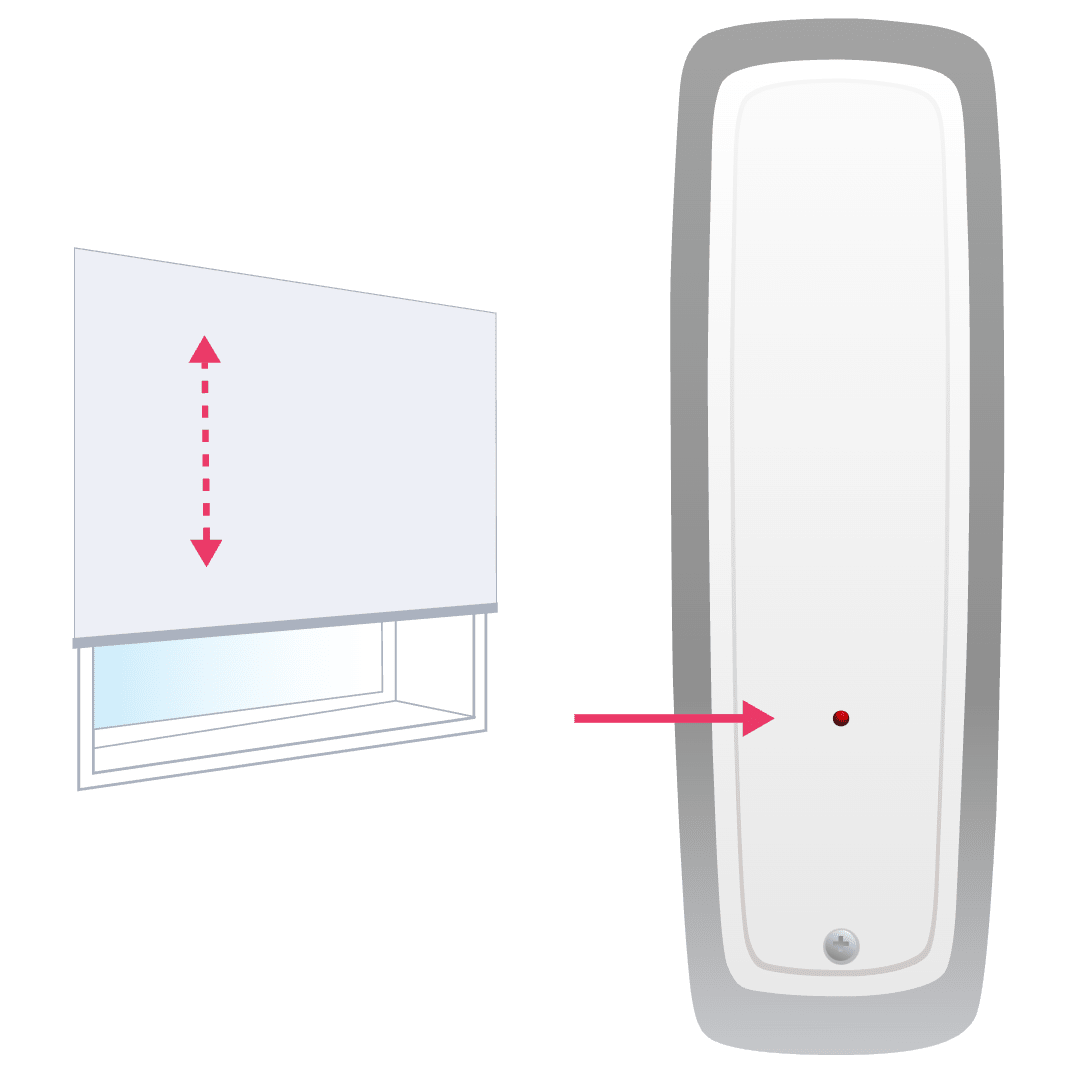
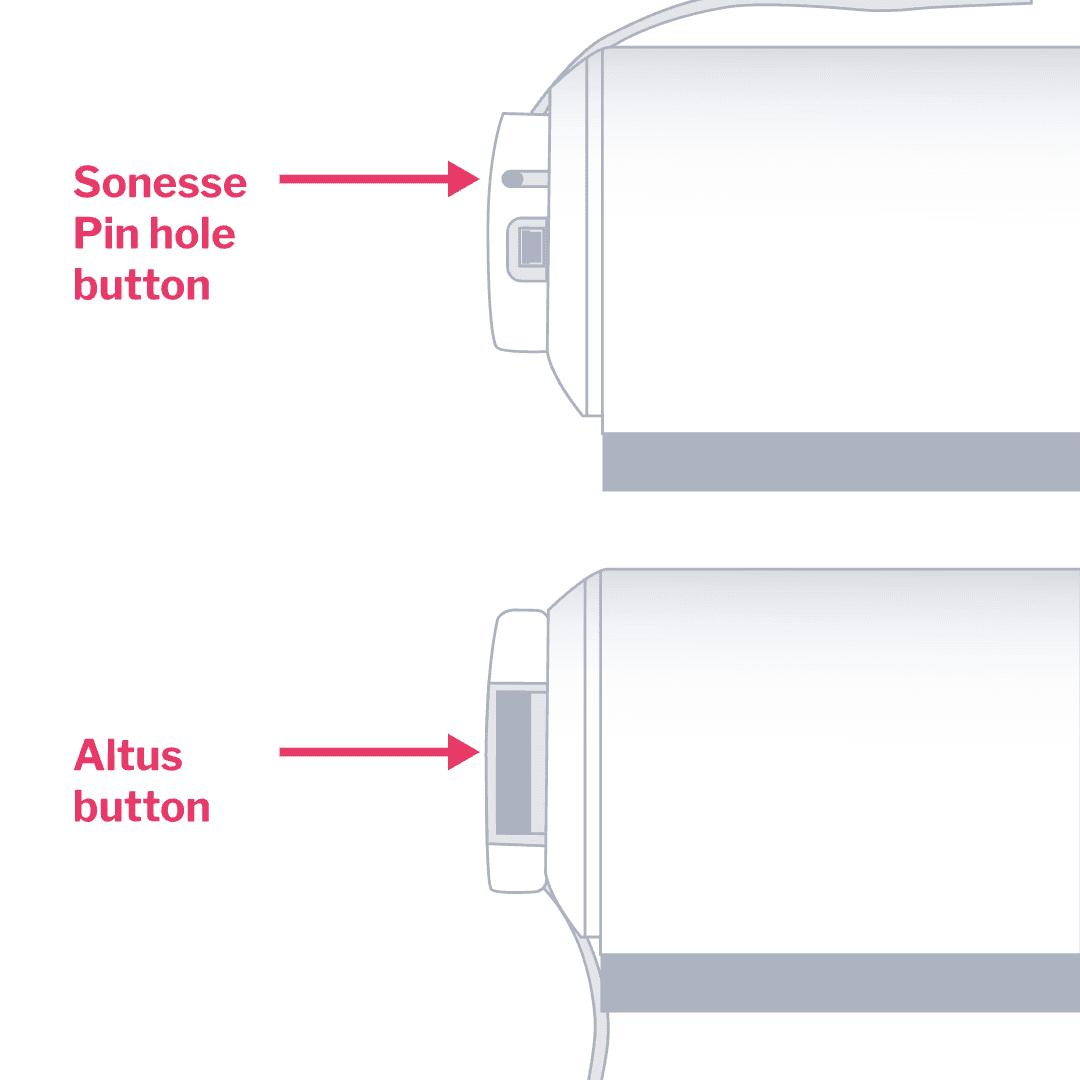
Press the pin hole button (Sonesse) or motor button (Altus) on the side of your roller blind to activate your motor. The blind should jog up and down. Remember your motor battery needs to be charged before you start. For multiple roller blinds including double and linked blinds, add one blind at a time to your remote by following steps 1 to 10. Don't try to set them up simultaneously. Once you've added every blind to your remote, you can group them.
2

Pick your channel

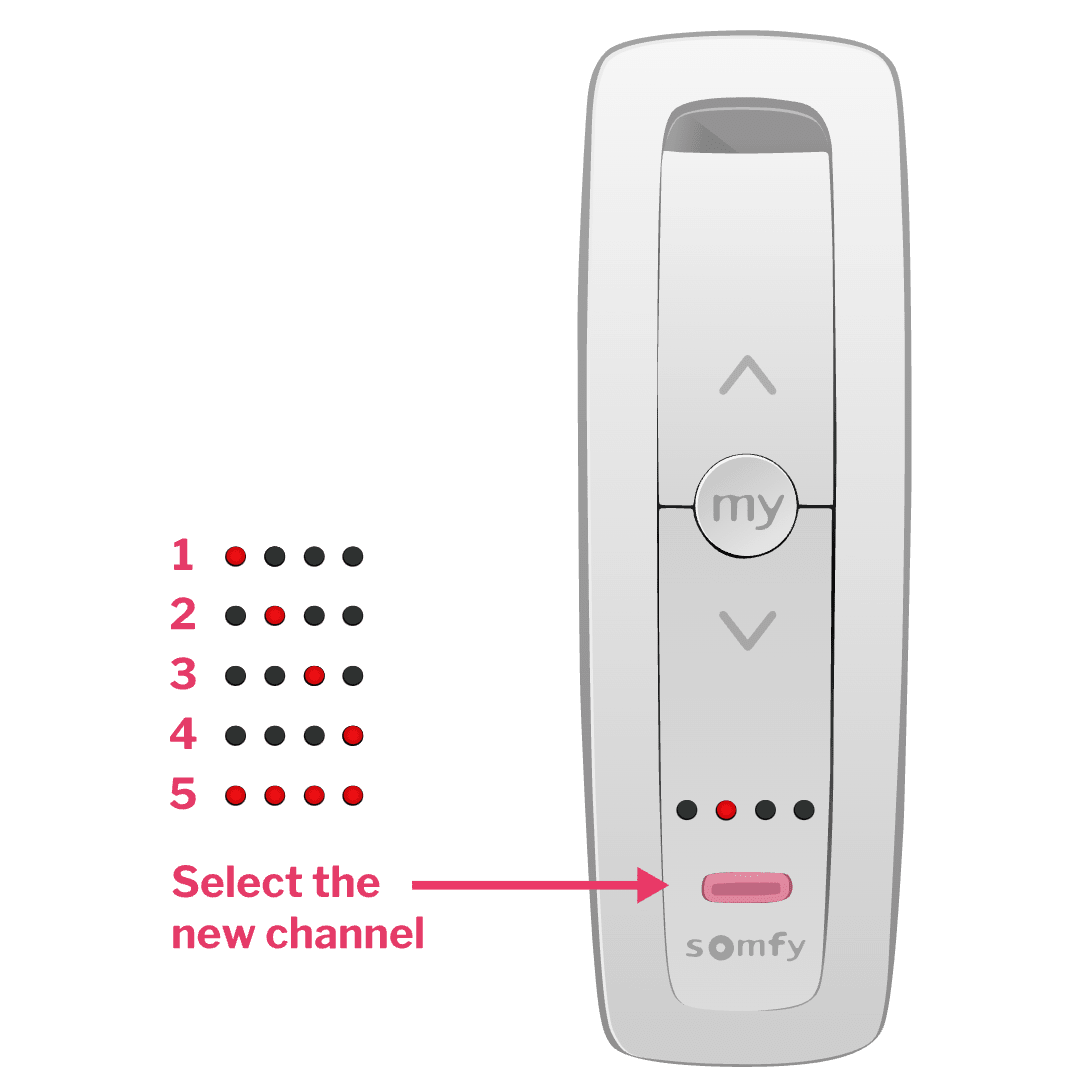
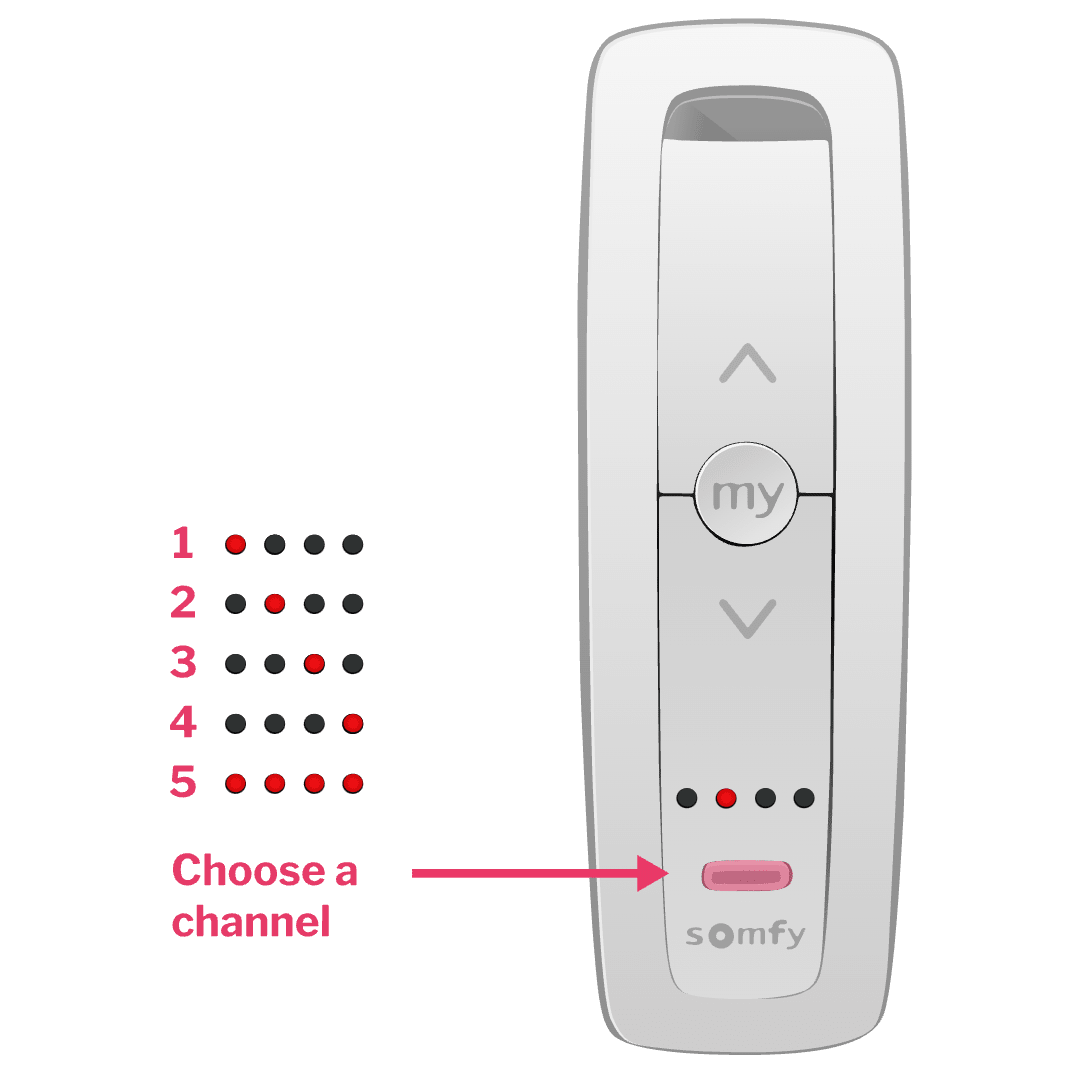
For 5 channel remotes click the channel button at the bottom of your remote, to choose which channel will control your blind. The red light displays which channel you're on.

For 1 channel remotes, you can skip this step.
3

Assign your blind to the channel

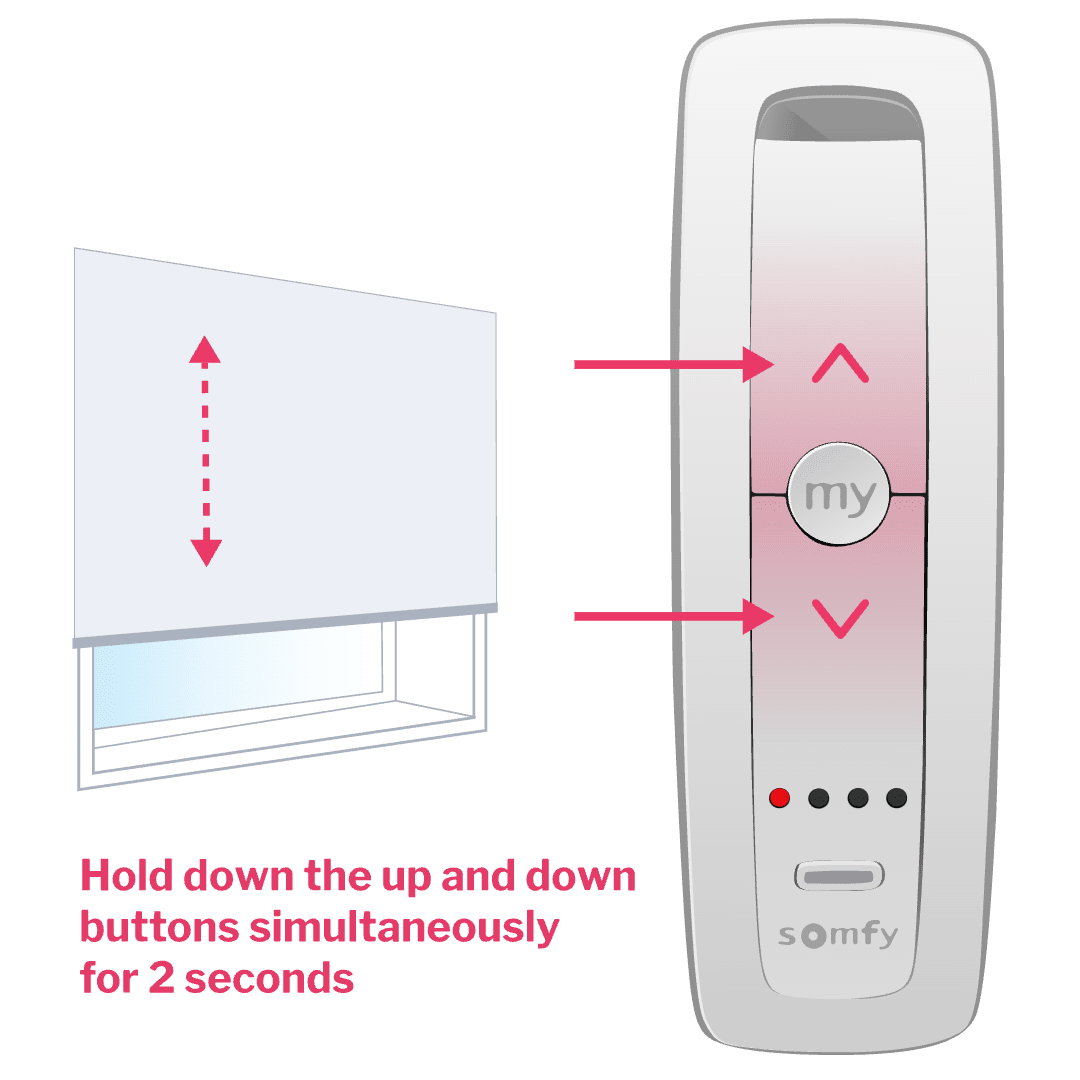
Hold down the up and down buttons simultaneously for 2 seconds. Your blind will jog up and down, once your blind has been assigned to the channel. Blinds won't jog? See 'I need some extra help' at bottom of page.
4

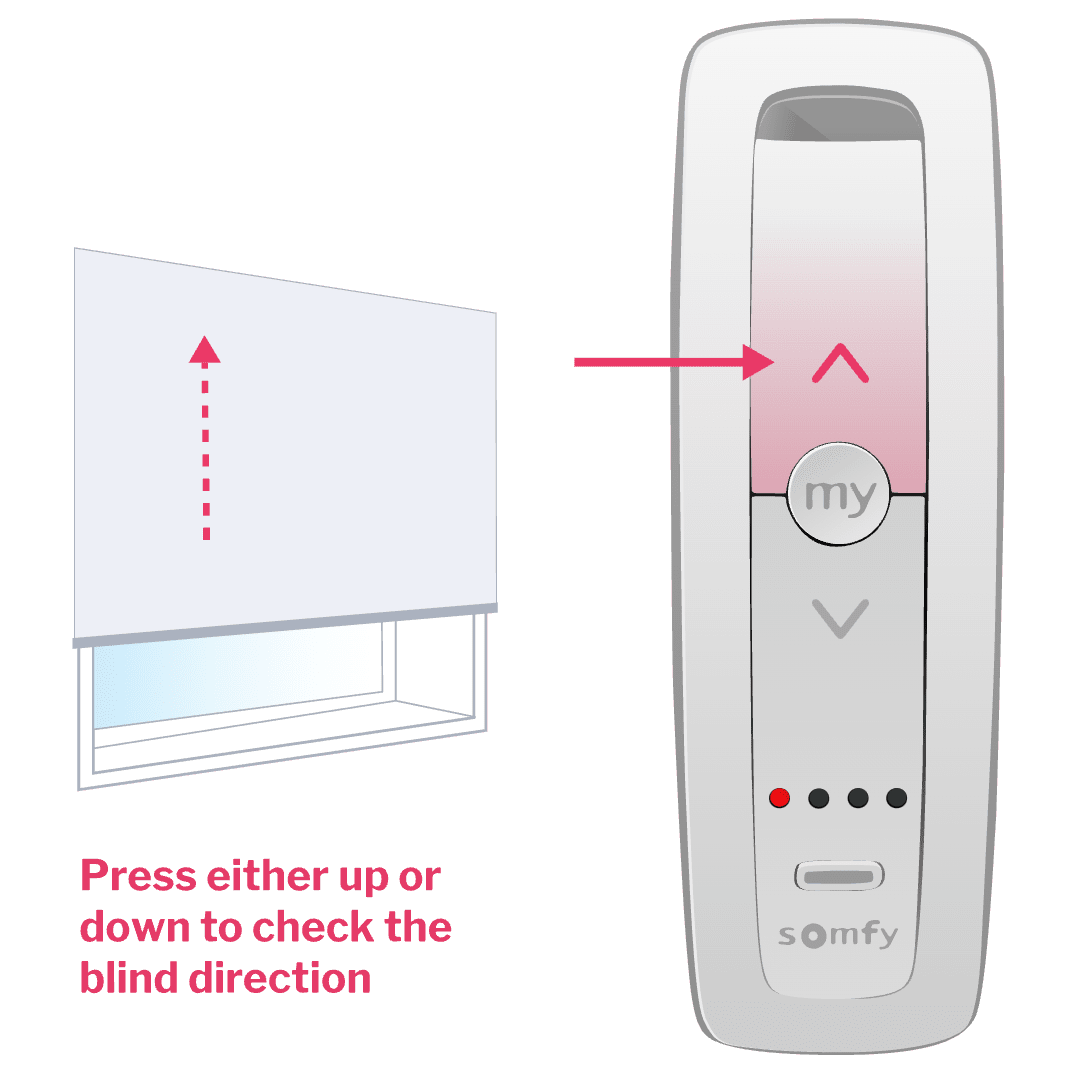
Check your roll direction

Press either the up or down button on your remote and check that your blinds roll in the right direction. If your roll direction is wrong, hold down the my button for 2 seconds and your blinds will jog up and down. Check again and your blinds should roll in the right direction now.
5

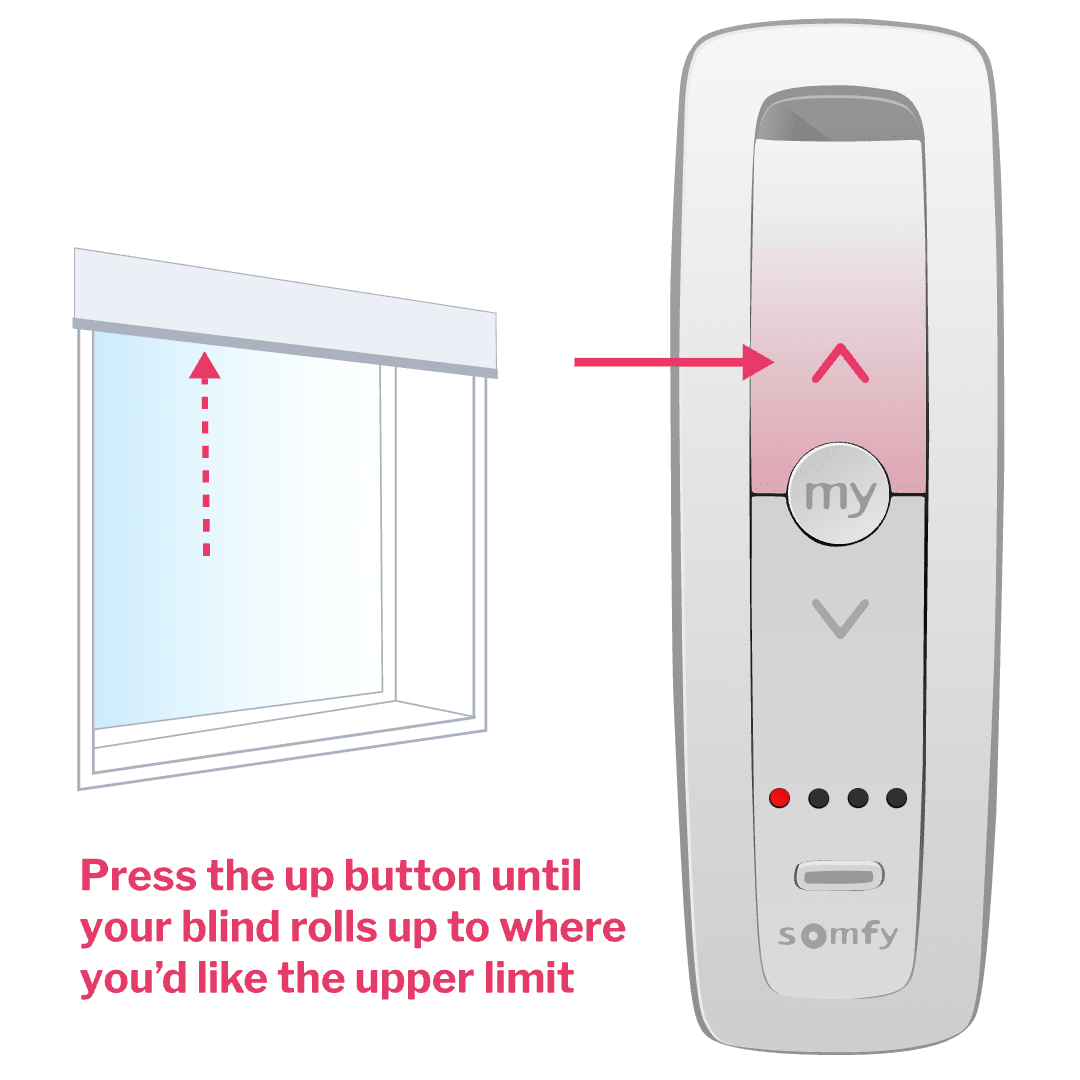
Set your blind's upper limit (part A)

Press the up button until your blind rolls all the way up, to where you’d like the upper limit. If you go slightly too far, just press the down button to nudge your blind down.
6

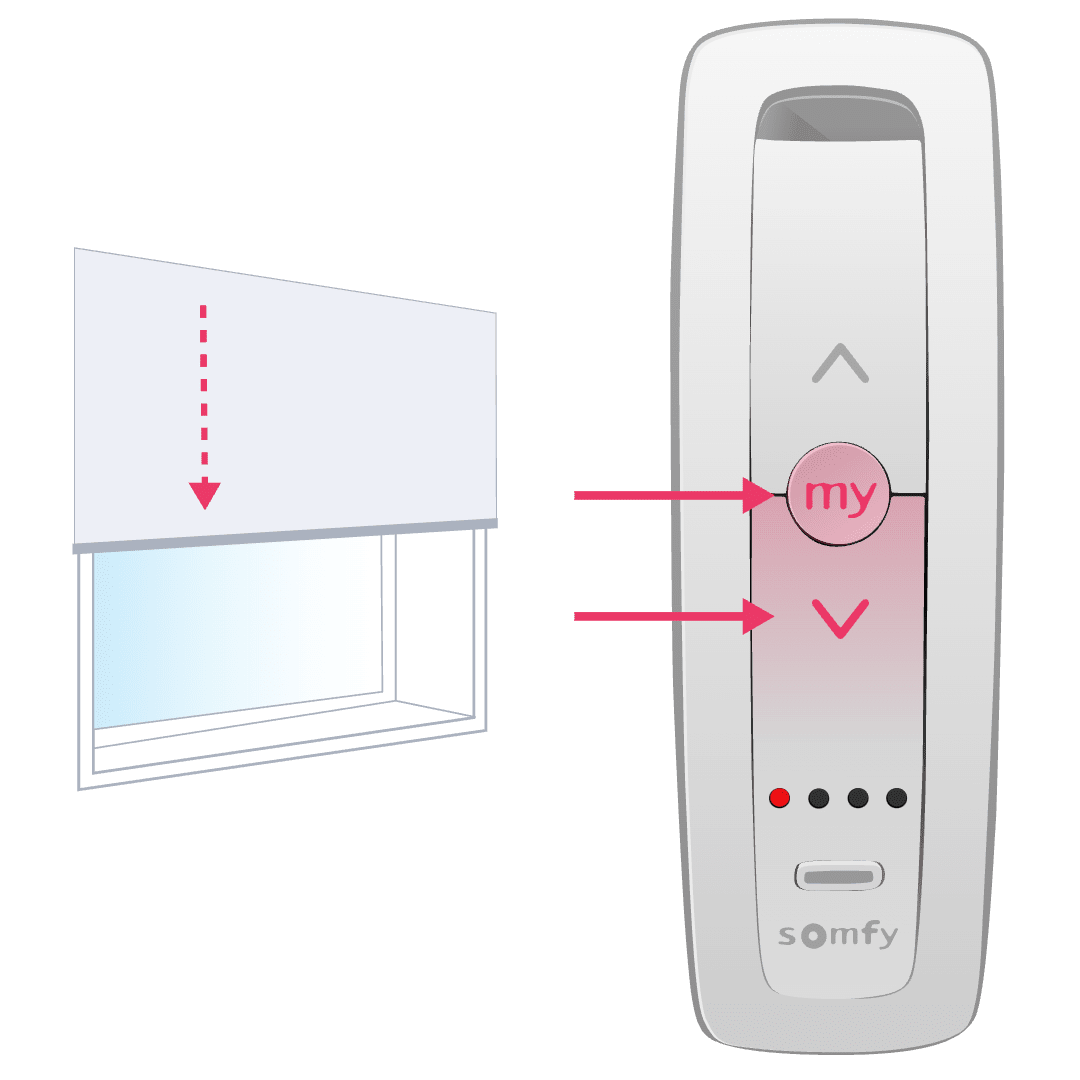
Set your blind's upper limit (part B)

Hold down the my and down buttons simultaneously and your blind will start to run downwards automatically, then release the buttons and press the my button to stop the blind before it reaches the bottom.
7

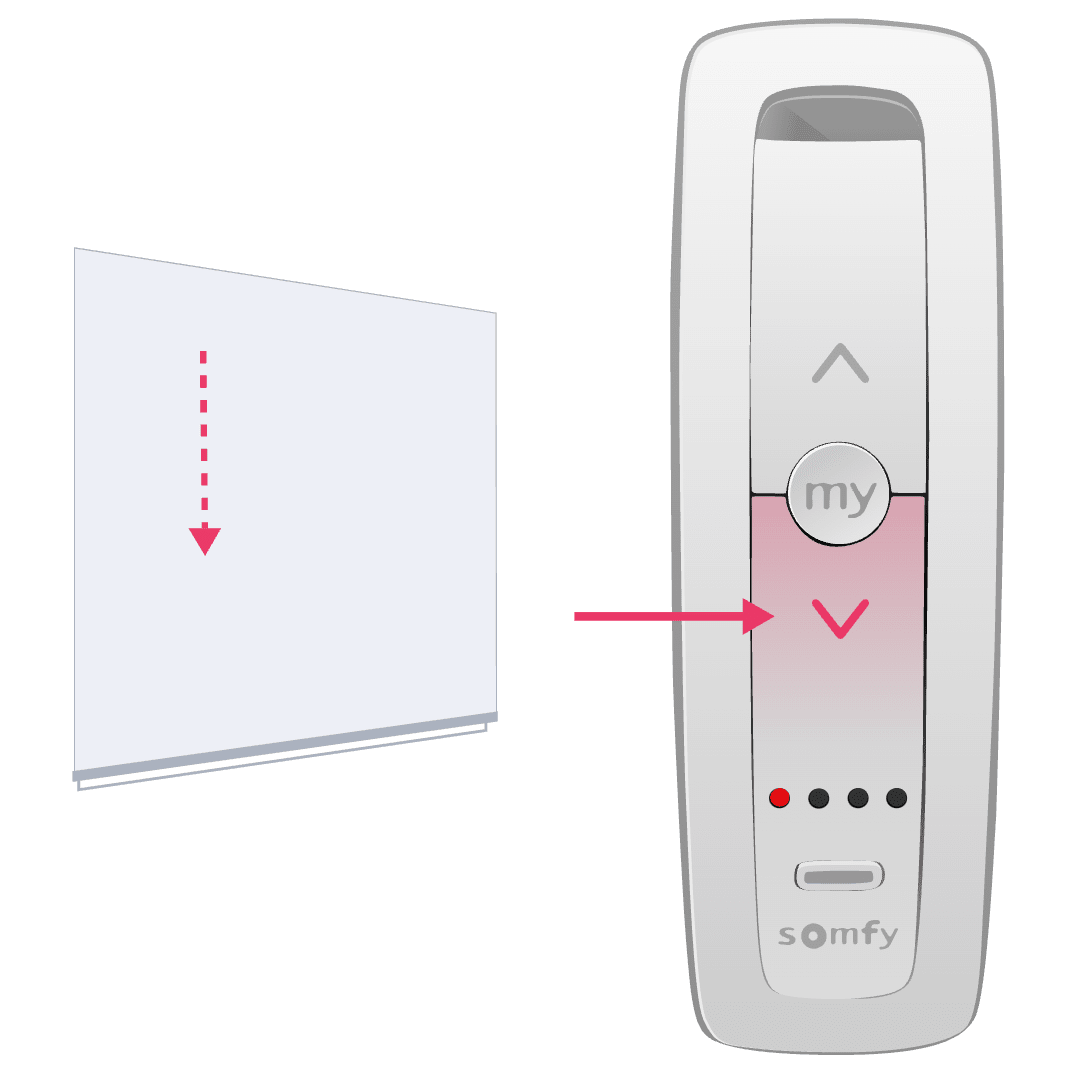
Set your blind's lower limit (part A)

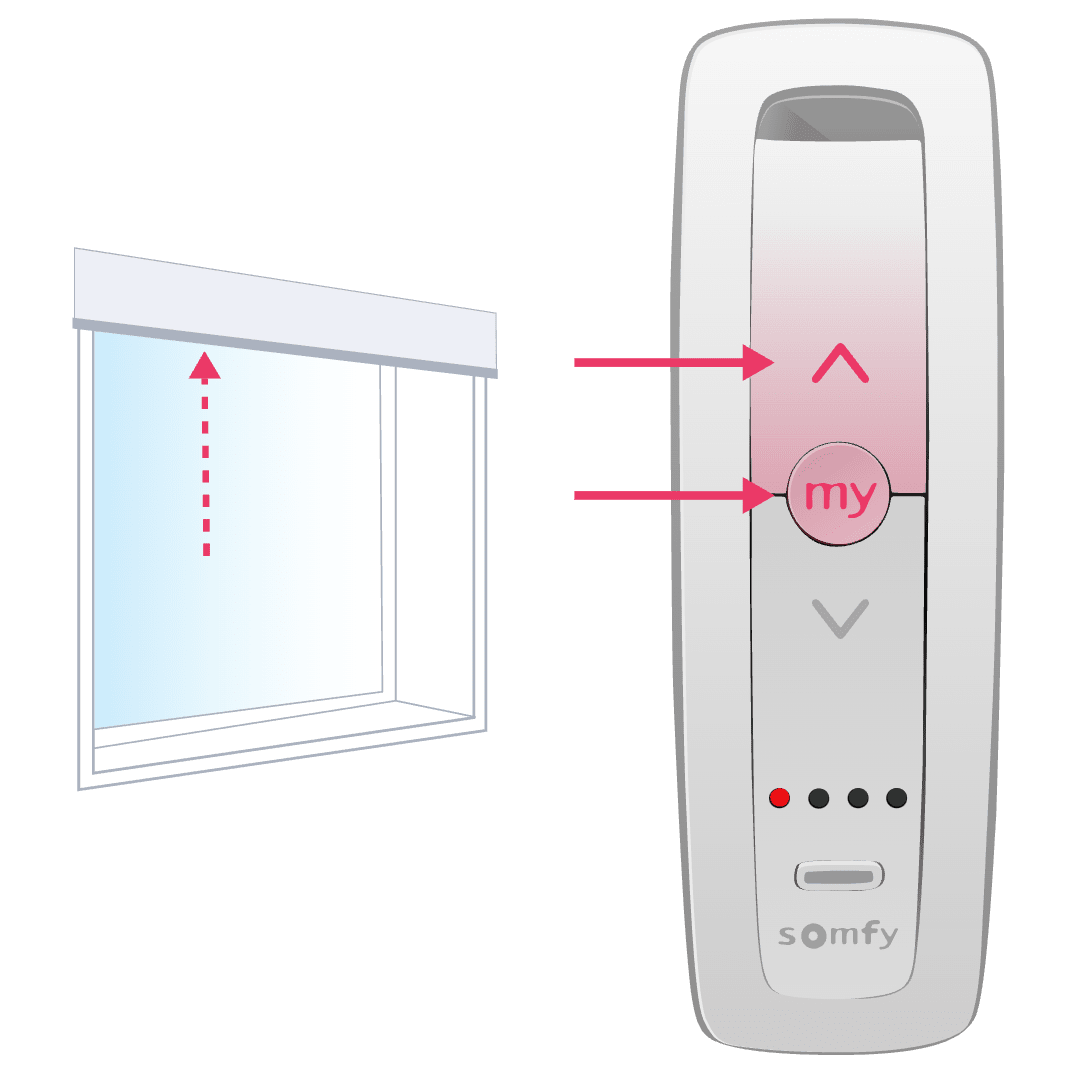
Press the down button until your blind rolls all the way down, to where you’d like the lower limit. Remember if you go slightly too far, just press the up button to nudge your blind back up.
8

Set your blind's lower limit (part B)

Hold down the my and up buttons simultaneously and your blind will run all the way up to your upper limit.
9

Confirm your end limits

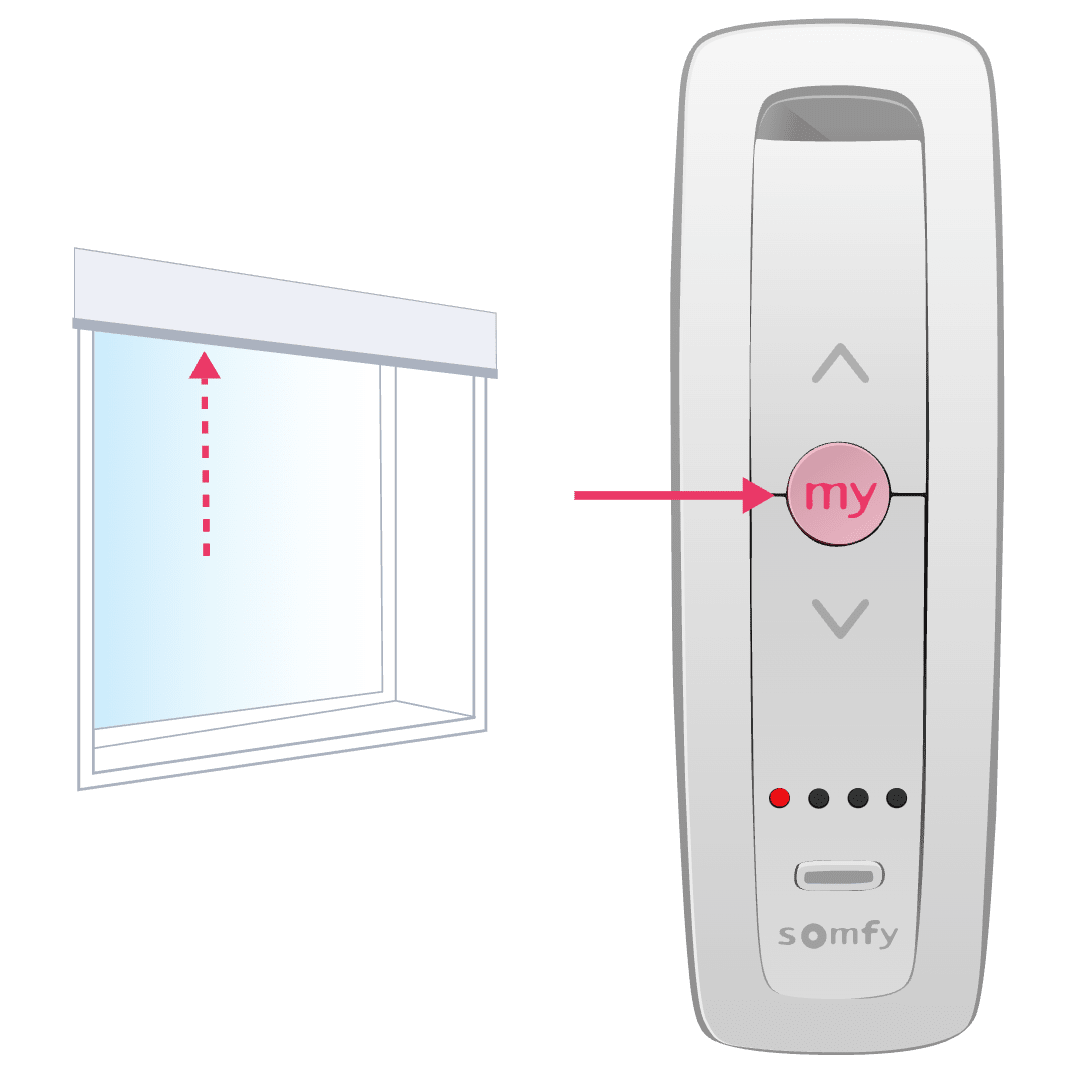
Hold down the my button for 2 seconds until the blind jogs. The control now has your upper and lower limits memorised.
10

Finish your remote set up

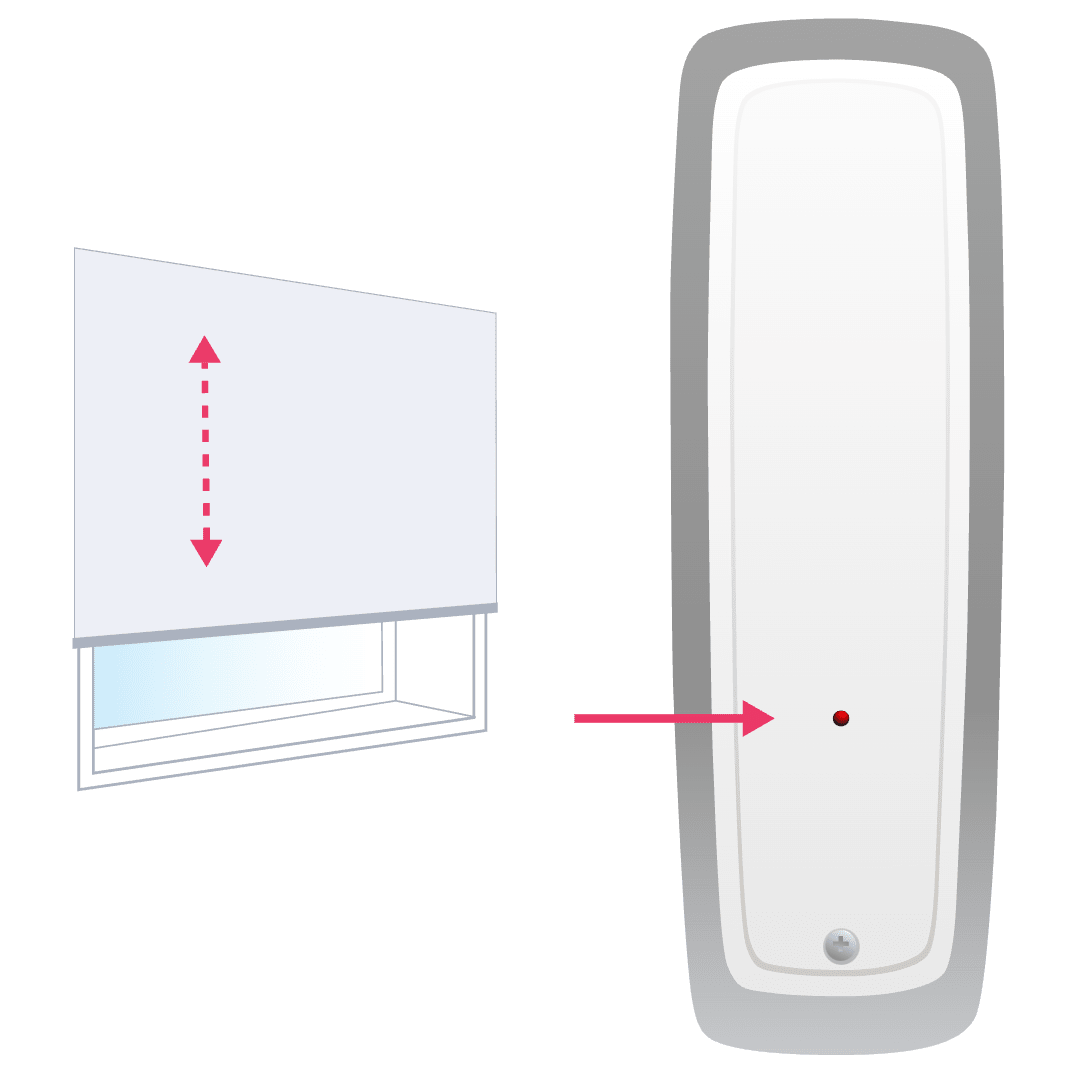
Grab a paperclip or pin and press the program button on the back of the remote for less than a second, which will make your blinds jog. If your blind doesn't jog, try again by only tapping the button (pressing and holding the program button won't be successful). Ensure the blind jogs to complete setup.

You're all set to start using your Somfy remote! Use the up and down buttons to control your blind and the my button to stop your blind moving.

To set up your remote for multiple blinds including double and linked blinds, remember to follow steps 1 to 10 for each additional blind motor, one by one. Then group them by following the steps in the Grouping your blinds tab of this guide.
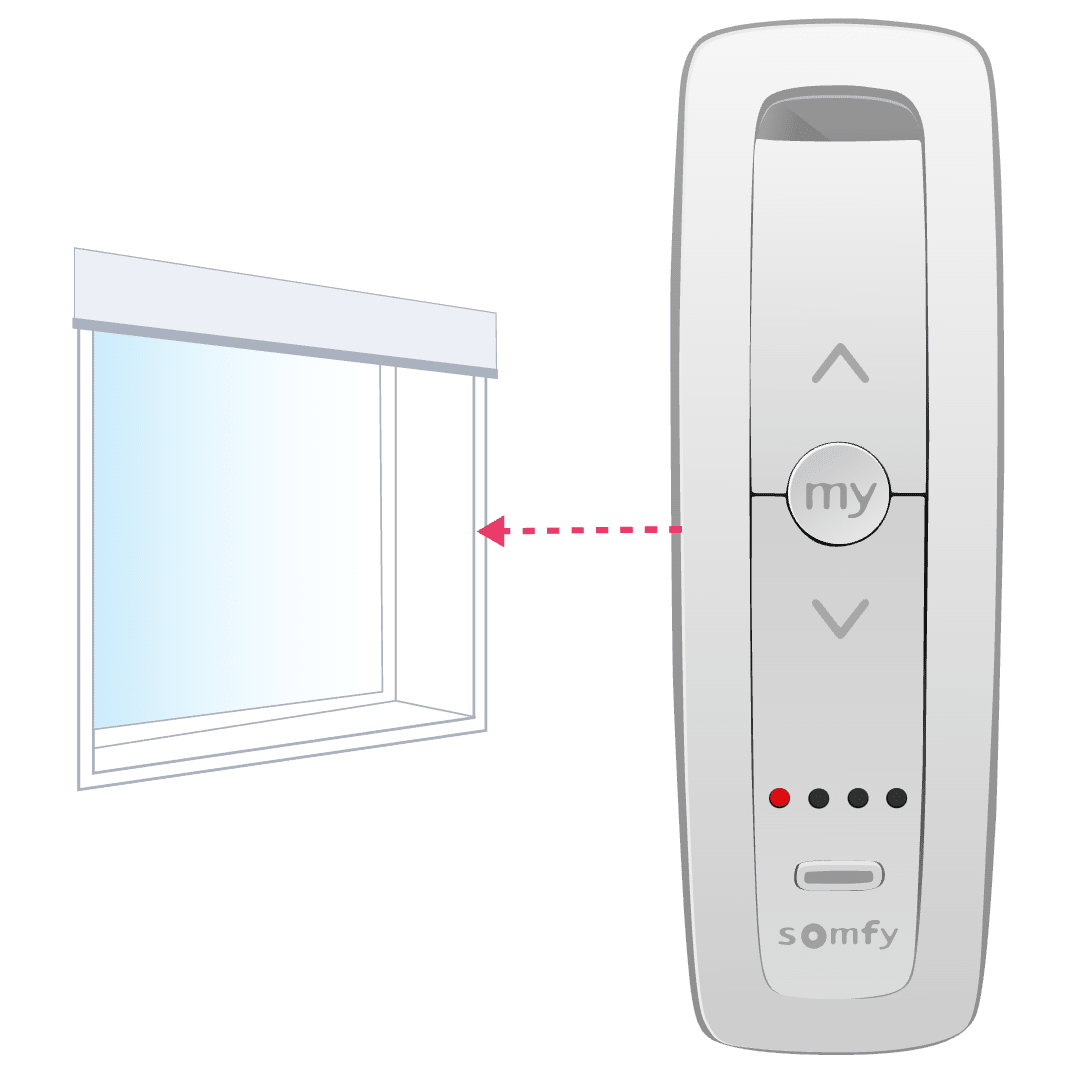
Setting up your remote is easy. Follow these steps, then kick back and enjoy your motorised blinds. Here's how to do it:

1

Plug in your motor

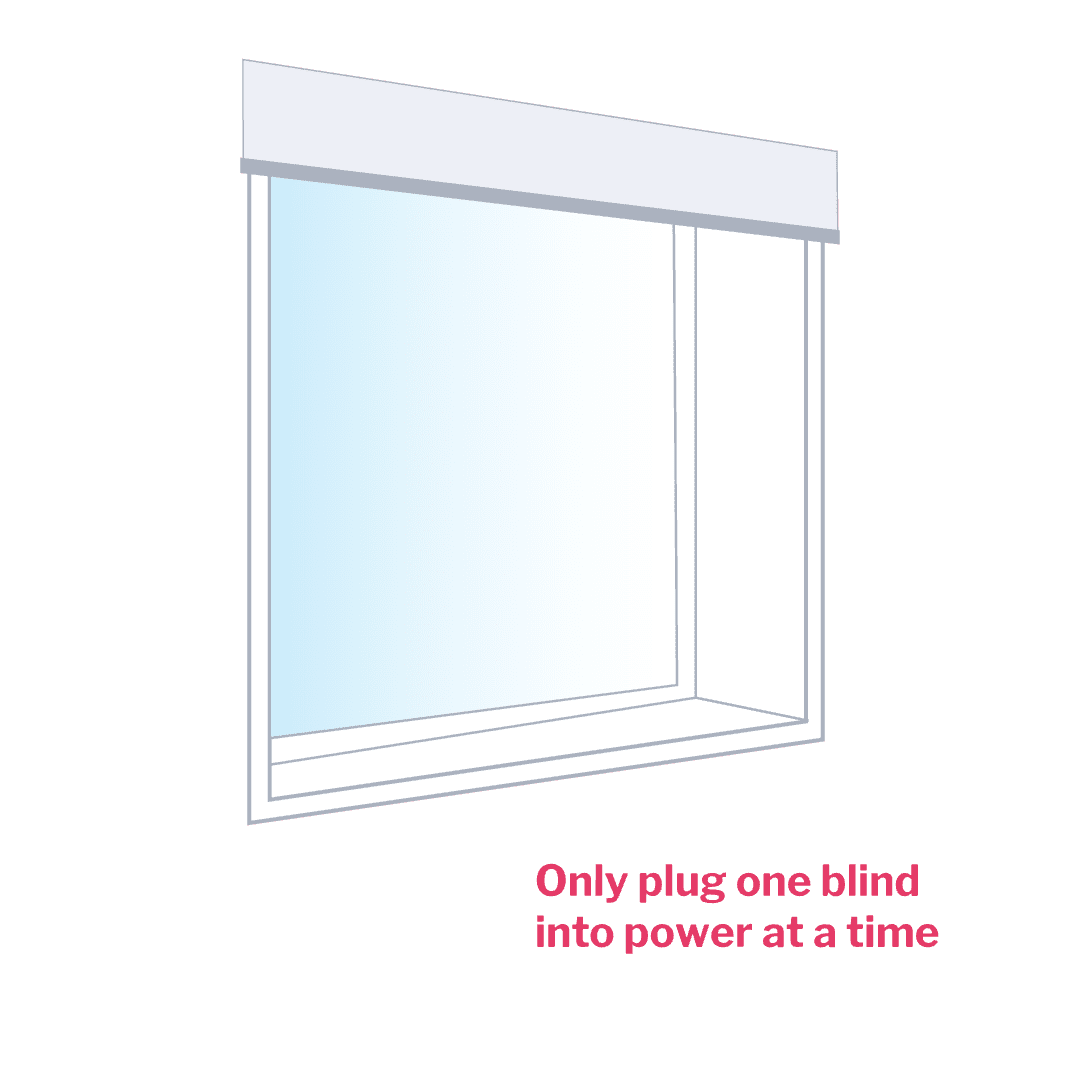
Make sure your motor is plugged into power and your power is turned ON.

For multiple roller blinds including double and linked blinds, add one blind at a time to your remote by following steps 1 to 10. You'll need to make sure every other blind is turned OFF at the power, except for the blind you're setting up. Once you've added every blind to your remote, you can group them.

2

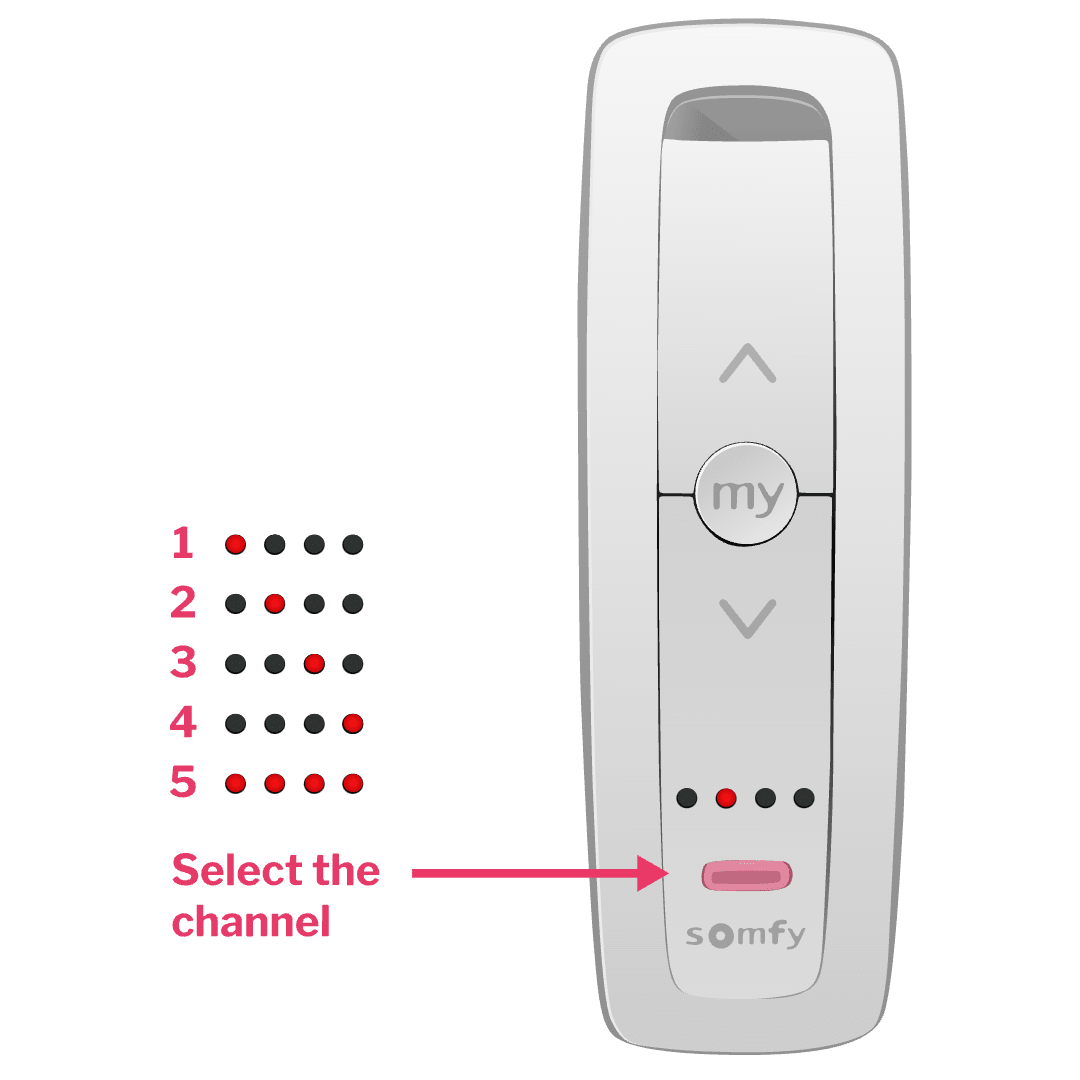
Pick your channel

For 5 channel remotes click the channel button at the bottom of your remote, to choose which channel will control your blind. The red light displays which channel you're on.

For 1 channel remotes, you can skip this step.

3

Assign your blind to the channel

Hold down the up and down buttons simultaneously for 2 seconds. Your blind will jog up and down, once your blind has been assigned to the channel. Blinds won't jog? See 'I need some extra help' at bottom of page.

4

Check your roll direction

Press either the up or down button on your remote and check that your blinds roll in the right direction.If your roll direction is wrong, hold down the my button for 2 seconds and your blinds will jog up and down. Check again and your blinds should roll in the right direction now.

5

Set your blind's upper limit (part A)

Press the up button until your blind rolls all the way up, to where you’d like the upper limit. If you go slightly too far, just press the down button to nudge your blind down.

6

Set your blind's upper limit (part B)

Hold down the my and down buttons simultaneously and your blind will start to run downwards automatically, then release the buttons and press the my button to stop the blind before it reaches the bottom.

7

Set your blind's lower limit (part A)

Press the down button until your blind rolls all the way down, to where you’d like the lower limit. Remember if you go slightly too far, just press the up button to nudge your blind back up.

8

Set your blind's lower limit (part B)

Hold down the my and up buttons simultaneously and your blind will run all the way up to your upper limit.

9

Confirm your end limits

Hold down the my button for 2 seconds until the blind jogs. The control now has your upper and lower limits memorised.

10

Finish your remote set up

Grab a paperclip or pin and press the program button on the back of the remote for less than a second, which will make your blinds jog. If your blind doesn't jog, try again by only tapping the button (pressing and holding the program button won't be successful). Ensure the blind jogs to complete setup. You're all set to start using your Somfy remote! Use the up and down arrows to control your blind and the my button to stop your blind moving.To set up your remote for multiple blinds including double and linked blinds, just follow steps 1 to 10 for each additional blind motor, one by one. Remember to switch OFF power on each blind you've added to your remote before adding the next blind. Then group them by following the steps in the Grouping your blinds tab of this guide.
Grouping your blinds on one channel or remote is easy and lets you control them all together with one click. Remember these are the last steps you follow, after you've added each one of your blinds to your Somfy remote(s).

1

Check you've set up your remote(s)

Before you group your blinds, follow the steps in the Battery powered or Wired tabs in this guide to add every blind to your remote(s).

2

Choose a blind to group

For 5 channel remotes click the channel button at the bottom of your remote to select the channel of the blind you're wanting to group. The red light displays which channel you're on. You'll group each blind one by one, following steps 1 to 6 here.

For 1 channel remotes you can skip this step. Just have the remote handy for the blind you're wanting to group.

3

Put the blind into programming mode

Grab a paperclip or pin and hold down the program button on the back of your remote, until your blind jogs.

4

Choose your group channel

For 5 channel remotes click the channel button to select the new channel you want to group all your blinds on.

If you're grouping on a separate 1 channel remote, grab the remote.

5

Add your blind to your group channel

Grab a paperclip or pin and press the program button on the back of the remote you're grouping your blinds on for less than a second, which will make your blinds jog. Well done, you can now control your blind on the original channel or remote and on your group channel!

Adding your blinds didn't work? Make sure you press the program button quickly, for less than 1 second. If it didn't work, wait a few minutes then try again from step 2.

6

Repeat to group more blinds

Follow steps 1 - 5 here to add more blinds to your group channel or remote.

I need some extra help

How do I charge my blinds motor battery?

New battery powered motors need to be fully charged before you use them.

Grab your Somfy power charger and connect it to the charging port on your motor head. When the LED on the motor head turns solid green, it's ready to go and you can disconnect the charger.

My blinds won't jog

If your blind doesn't jog it's an easy, one step process to reset your blind's motor.

Press and hold the button (Altus) or pin hole (Sonesse) on your motor head for 13 - 60 seconds. Your blind will jog up and down 3 times during the reset process. Now you're good to start setting up your Somfy remote.

Can I start over if I miss a step when setting up blinds on my Somfy remote?

Mistakes happen! No need to worry, you can easily start over if you miss a step during set up.

To erase any settings you added, press and hold the button (Altus) or pin hole (Sonesse) on your roller blind motor head for 13 - 60 seconds. Your blind will jog up and down 3 times during the reset process. Now you can start the set up again.

For wired motors, if you make a mistake part way through set up just unplug the motor, wait for 10 seconds then plug the motor back in. Now you can start the set up again.

Can I setup multiple blinds motors on a single channel on my Somfy remote?

Yes. If you are setting up a battery motor. You can setup the first motor using the setup instructions above. Once complete, you need to put the motor to sleep using the below steps:

  1. Press and hold the motor head button until the blinds briefly moves Up and Down. Release the button once complete.

  2. Briefly press the motor head button, the blind will briefly move Up and Down twice. Motor is in sleeping mode.

  3. Setup the next motor on the same channel using the steps in the above guide.

  4. The deactivate Sleeping Mode, briefly press the motor head button. The blind will move Up and Down.
We’re here to help with any questions
Support

We’re here to help with any questions

Whether you're midway through installing your blinds or just getting started, our team is here to help. From measuring guides to installation tips, we’ve got answers to make things simple and stress-free. Contact us on 1300 918 390 (AEDT).